# Catalog (https://docs.xraise.ai/community/catalog)
The **Catalog** screen shows the listings your community carries: perks and programs that your members see in your community.
## Who sees this screen and how to get to it [#who-sees-this-screen-and-how-to-get-to-it]
* Partner organizations that run a community. Click **Catalog** in the left menu (/partner/catalog).
* From the community overview, click **Catalog** under **Manage this community** (/partner/community/(community id)/catalog). Both addresses show the same screen.
At this time, catalog editing is paused in the partner panel. You can see the catalog and every listing, but you cannot add, remove, place or create listings. The screen shows: "At this time, you can see the catalog and its listings, but you cannot add or change them." The menu item is called **Catalog** while editing is paused. To change your catalog now, contact XRaise.
## Shared and exclusive listings [#shared-and-exclusive-listings]
Your community catalog holds two kinds of listing:
| Kind | Where it comes from | Who sees it |
| ------------------------------------ | ------------------------------------------------------------------------------------------ | ------------------------------------------------------------------- |
| **Shared** (from the XRaise catalog) | A perk or program that is in the XRaise catalog. Your community carries it too. | Founders in the XRaise catalog, and your members in your community. |
| **Exclusive** | A perk your organization created for your community only. It is not in the XRaise catalog. | Only people in your community. |
Rules:
* Removing a listing from your catalog does not delete it. "The provider listings are not deleted." A shared listing stays in the XRaise catalog.
* In an **Invite only** community, founders must be members before they can apply through the community.
* A new exclusive perk is a draft until XRaise publishes it. It shows on the **Exclusive offers** tab either way.
## The screen, top to bottom [#the-screen-top-to-bottom]
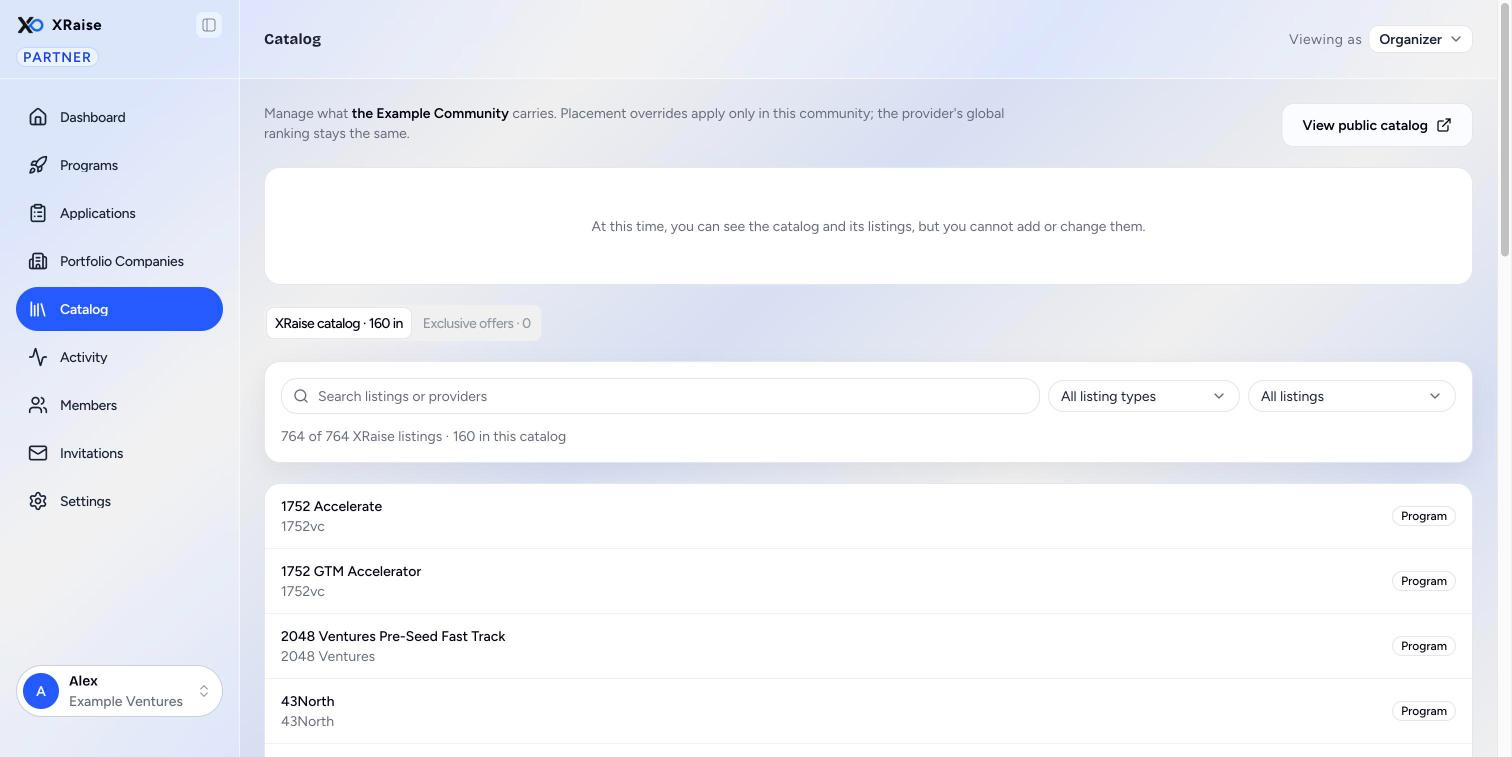 ### The header [#the-header]
The line at the top says: "Manage what (community name) carries. Placement overrides apply only in this community; the provider's global ranking stays the same."
| Button | What it does |
| ------------------------- | ------------------------------------------------------------------------------------------------------------------------------------------------------------------------------ |
| **View public catalog** | Opens your community page, /community/(slug), in a new tab. |
| **Create exclusive perk** | Opens the form for a new exclusive perk. Paused while catalog editing is paused. Shows only when your organization may create exclusive perks. |
| **Your authored perks** | Opens the list of perks your organization wrote. Paused while catalog editing is paused. If the list is empty, it shows "No perks yet" and a **Create exclusive perk** button. |
### The two tabs [#the-two-tabs]
| Tab | What it shows |
| -------------------------------- | ----------------------------------------------------------------------------------- |
| **XRaise catalog · (number) in** | Every listing in the XRaise catalog. The number is how many your community carries. |
| **Exclusive offers · (number)** | The exclusive listings of your community. |
### The XRaise catalog tab [#the-xraise-catalog-tab]
Use the tools at the top to find listings:
| Control | Choices |
| -------------------------------- | --------------------------------------------------------------- |
| **Search listings or providers** | Type part of a listing name or a provider name. |
| **Listing type** | **All listing types**, **Perks**, **Programs**. |
| **Membership** | **All listings**, **In this catalog**, **Not in this catalog**. |
A line under the tools counts the results, for example "40 of 312 XRaise listings · 25 in this catalog".
Each row shows:
* The listing name and the provider. "No provider" shows when none is recorded.
* The listing type.
* **In catalog**, when your community carries the listing.
* The placement, for a listing your community carries. See [Placement](#placement).
The list shows a page at a time. Use the page controls at the bottom.
A listing your community carries that is no longer published in the XRaise catalog still shows here, so you can see it and remove it.
### The Exclusive offers tab [#the-exclusive-offers-tab]
Each row shows the listing name, the provider, the listing type, its status (for example **Draft** or **Published**) and its placement.
If there are none, the tab says "No exclusive offers yet".
## Placement [#placement]
Placement decides the order of listings in your community catalog only. It never changes the order in the XRaise catalog.
| Placement text | Meaning |
| ------------------------------ | ----------------------------------------------------------------------------- |
| **Follows global** | The listing uses the provider's global ranking. This is the most common case. |
| **Priority (number)** | Your community set its own priority for the listing. |
| **Featured · global (number)** | The listing is featured, and uses the global ranking. |
| **Featured · (number)** | The listing is featured, with your own priority. |
How the order works:
* A featured listing comes before every listing that is not featured.
* A higher priority number comes first. Priority is a whole number from 0 to 10,000.
* An empty priority follows the provider's global ranking.
## Tasks (paused) [#tasks-paused]
These tasks need catalog editing, which is paused at this time. They describe the screen when editing is turned on. Owners and admins can then do them.
### How to add XRaise listings to your catalog [#how-to-add-xraise-listings-to-your-catalog]
1. Open the **XRaise catalog** tab.
2. Set **Membership** to **Not in this catalog**.
3. Search or filter to find the listings.
4. Select the listings. **Select all (number)** selects every listing that matches the filters, on all pages.
5. Click **Add (number) to catalog**.
### How to remove listings [#how-to-remove-listings]
1. Select the listings that your community carries.
2. Click **Remove (number)**.
3. Read the dialog: "They leave this community catalog. The provider listings are not deleted."
4. Click **Remove listings**.
To remove one listing, click the bin icon on its row, then click **Remove listing**.
### How to feature a listing or set its priority [#how-to-feature-a-listing-or-set-its-priority]
1. Click **Placement** on the row.
2. Tick **Feature at top** to feature it.
3. Type a number in **Priority**, or leave it empty to follow the global ranking. The panel shows the global ranking: "Empty follows the provider's global ranking, (number)."
4. Click **Save**. Click **Cancel** to close without a change.
To change many listings at once, select them and click **Feature**, **Unfeature** or **Clear priority**. If the change stops part of the way, a message says how many listings changed. Check their placement and try again.
### How to create an exclusive perk [#how-to-create-an-exclusive-perk]
1. Click **Create exclusive perk**. The form opens at /partner/catalog/new.
2. Fill in the perk form. A banner says: "This perk is scoped to your community catalog, not the global catalog."
3. Click **Submit exclusive perk**.
4. Read the dialog **Perk created, waiting on XRaise**. The perk is in your catalog as a draft. Members cannot see it until XRaise approves it. You can edit the draft in the meantime.
5. Click **Back to catalog**.
If your organization may not create exclusive perks, the form page says "This organization cannot create community-exclusive perks."
### How to edit an exclusive perk [#how-to-edit-an-exclusive-perk]
Click **Edit** on its row in **Exclusive offers**. **Edit** shows only on listings your organization wrote.
On the perk form, the link at the top, **Cancel** and a saved perk take you back to **Catalog**.
## Common questions [#common-questions]
**Does removing a listing delete it?**
No. It only leaves your community catalog.
**Does featuring a listing change the XRaise catalog?**
No. Placement applies only in your community.
**Why can I not edit a shared listing?**
The text of a listing belongs to the organization that wrote it. You can only change where it shows in your community.