# XRaise partner docs (https://docs.xraise.ai)
XRaise connects startups with perks, programs and communities. Partners use the **partner panel** to publish them and to follow what founders do. The panel shows different screens to different partners. Choose your partner type to see only your pages.
You can change your partner type at any time with the selector at the top of the sidebar. If your organization is more than one type, for example an accelerator that also runs a community, read each section that applies to you.
## Not sure which type you are? [#not-sure-which-type-you-are]
Look at the menu on the left of the partner panel:
| You see in the menu | Your partner type |
| ------------------------------------------------- | ------------------- |
| **Offerings** | Vendor |
| **Programs** | Accelerator |
| **Portfolio companies**, **Catalog**, **Members** | Community organizer |
## Get help from the panel [#get-help-from-the-panel]
Each screen of the partner panel has a **Help** button in the top bar. It opens the page of this guide for that screen, in the section for your partner type.
## Use this guide with an AI assistant [#use-this-guide-with-an-ai-assistant]
Each page has a **Copy page for AI** button and a **View as Markdown** link. The whole guide is also available as one Markdown file at [/llms-full.txt](/llms-full.txt), and as an index at [/llms.txt](/llms.txt).
## Need more help? [#need-more-help]
Write to [support@xraise.ai](mailto:support@xraise.ai).
# Applications (https://docs.xraise.ai/accelerator/applications)
The **Applications** screen lists the applications that founders sent to the programs that your organization runs. You can read each application and sort it: short list, archive, or move back to review.
## Who sees this screen [#who-sees-this-screen]
Every person on your partner team sees **Applications** in the menu. Only an owner or an admin can move an application. See [Move an application on your program](#move-an-application-on-your-program).
{/* SCREENSHOT: /partner/applications | accelerator view with one row open on Application answers */}
## The filter bar [#the-filter-bar]
### Status [#status]
| Button | Shows |
| -------------- | -------------------------------------------------------------------- |
| **All** | Every application on your programs. The screen opens on this filter. |
| **Short list** | The applications that your team moved to the short list. |
| **Archived** | The applications that your team archived. |
The applications that wait for you have their own list on the [Dashboard](./dashboard.mdx#waiting-on-you). The links on the dashboard open this screen with the filter **All**.
### Search by startup [#search-by-startup]
Type the name of a startup. The list updates after you stop typing. Up to 120 characters.
### Program [#program]
Select one program, or **All programs**.
### Order [#order]
* **Oldest first**: the founder who waited longest is first. This is the default.
* **Newest first**.
### Under the filter bar [#under-the-filter-bar]
The line under the bar shows the number of applications, for example "24 applications". If you changed a filter, it also shows **Clear filters**. Click it to go back to the default view.
The list shows 20 applications on each page. Use the page buttons at the bottom to see more.
## The application row [#the-application-row]
### What each row shows [#what-each-row-shows]
| Part | What it shows |
| --------------------- | ------------------------------------------------------------------------------------------------------------------------------------------- |
| Startup name | The startup that applied. |
| Status tag | The status of the application. The **Statuses** page tells what each status means. |
| Listing name | The listing that the founder applied to. |
| One-liner and website | When the answers include a one-line description of the startup or a website, the row shows them. Click the website to open it in a new tab. |
| **Filed** | The date when the founder applied. |
| **Waiting** | How long the application has waited for a decision. It changes to a warning color after more than 7 days. |
On your own program, click the listing name to open the program. On an archived application, the row also shows the private **Note** of your team.
For the meaning of each status tag, see [Application statuses](./statuses.mdx#application-statuses).
### Application answers [#application-answers]
Click **Application answers** to open the answers. Click **Hide** to close them. The number on the button is the number of answers.
* The first block lists every question on the form, with the count, for example "12 of 14 answered". A question that the founder did not answer shows "Not answered".
* The block **Also provided, not part of this form** shows other answers that the founder gave, for example answers to a follow-up question.
* A file answer shows **Download file**. Click it to open the file in a new tab.
## Move an application on your program [#move-an-application-on-your-program]
This is only for an owner or an admin. A member sees the notice "You have read-only access. A partner owner or admin can short list and archive these applications."
The row shows the buttons for the moves that are possible:
| Button | Shows when the application is | What happens |
| ----------------------- | ------------------------------- | ---------------------------------------------------------------------------------- |
| **Short list** | Awaiting review or Archived | The application moves to your short list. |
| **Archive** | Awaiting review or Short listed | A dialog opens. You can add a private note. The application moves to your archive. |
| **Move back to review** | Short listed or Archived | The application goes back to **Awaiting review**. |
Every move can be undone. There is no confirmation step, except the note dialog for **Archive**.
The founder does not see these moves. For the founder, the application stays **In review** when you short-list it, archive it, or move it back. XRaise sends the founder no email about these moves.
### Short-list an application [#short-list-an-application]
Click **Applications** in the menu.
Find the application. Use **Search by startup** or **Program** if you need to.
Click **Application answers** and read the answers.
Click **Short list**.
The message "Short listed" shows. To see your short list, click the **Short list** filter.
### Archive an application [#archive-an-application]
Find the application on the **Applications** screen.
Click **Archive**.
Optional: type a note in **Note**. Up to 2,000 characters. Only your team sees it.
Click **Archive** in the dialog.
The message "Archived" shows. The note shows on the row while the application is archived. If you move the application out of the archive, the note is removed.
### Undo a move [#undo-a-move]
Click the **Short list** or **Archived** filter.
Find the application.
Click **Move back to review**, or click the other move.
If the message "Couldn't move this application. It changed since you loaded it. Refresh." shows, a teammate moved the application first, or the founder withdrew it. Refresh the page and look at the row again.
## Common questions [#common-questions]
**Can I approve or decline an application to my program?**
The panel has no approve or decline for program applications. You can short-list it, archive it, or move it back to review.
For more answers, see [Common questions](./faq.mdx#applications).
# Dashboard (https://docs.xraise.ai/accelerator/dashboard)
The **Dashboard** is your home page in the partner panel. It shows what needs your attention today. The full lists are on their own screens.
## Open the dashboard [#open-the-dashboard]
* Click **Dashboard** in the menu.
* Or open the partner panel address without a page name. XRaise opens the **Dashboard**.
## Accelerator overview [#accelerator-overview]
{/* SCREENSHOT: /partner/dashboard | accelerator with applications in Waiting on you and one window closing soon */}
The accelerator overview has these sections, from top to bottom.
### Waiting on you [#waiting-on-you]
The applications on your programs that nobody on your team has looked at yet. The number next to the title is the total. It changes to a warning color when the oldest application has waited more than 7 days.
The list shows the oldest application first, up to 8 applications. Each row shows:
* The name of the startup.
* The name of the program.
* **Filed**: the date when the founder applied.
* **Waiting**: how long the application has waited. It changes to a warning color after more than 7 days.
* **Review**: opens the [Applications](./applications.mdx) screen with the filter **All** and the program of the application, and highlights its row. The list shows the oldest application first. If the row is not on the first page, go to the next page.
Click **All applications** to open the full list with the filter **All**. If nothing waits, the panel shows "No application is waiting on you."
### The four figures [#the-four-figures]
| Figure | What it counts |
| ------------------------------ | ------------------------------------------------------------------------------------------------------------------------------------------------------------------------- |
| **Waiting on you** | The applications that wait for your decision. The **Waiting on you** list above shows them. Click the figure to open the **Applications** screen with the filter **All**. |
| **Applications, last 30 days** | The applications filed in the last 30 days, with the change from the 30 days before. The 30 days end today. They are not a calendar month. |
| **Short listed** | The applications on your short list now. Click it to open them. You can move an application back, so this figure can go down. |
| **Short list share** | The short-listed applications, divided by all the applications that you short-listed or archived. Applications still in review are not counted. |
A figure shows "-" until XRaise can load it. A dash does not mean zero.
### Closing soon and Opening soon [#closing-soon-and-opening-soon]
These sections show only when they have content.
* **Closing soon**: the programs whose application window closes in the next 30 days, with the closing date.
* **Opening soon**: the programs whose application window opens in the next 30 days, with the opening date.
### Active programs [#active-programs]
The programs that received at least one application in the last 30 days. Each row shows the program name, its application window, **Waiting** (applications that wait for you) and **Last 30 days** (applications in the last 30 days). Click a program name to open it. Click **All programs** to open the [Programs](./programs/index.mdx) screen.
If your organization has no programs yet, the dashboard shows "No programs yet" and a **Programs** button.
## How to find the oldest application that waits for you [#how-to-find-the-oldest-application-that-waits-for-you]
Click **Dashboard** in the menu.
Find the first row in **Waiting on you**. It is the oldest application.
Click **Review** on that row.
On the **Applications** screen, click **Application answers** to read the answers.
To move the application, see [Move an application on your program](./applications.mdx#move-an-application-on-your-program).
# Common questions (https://docs.xraise.ai/accelerator/faq)
## Access and sign-in [#access-and-sign-in]
**How do I get access to the partner panel?**
XRaise connects the first person when it sets up your organization. After that, an owner or an admin of your organization invites other people from **Settings**.
**Do I need a password?**
No. You sign in with a one-time code that XRaise sends to your email address, or with a social login.
**I signed in, but I see the founder dashboard. How do I open the partner panel?**
Use the **Viewing as** switcher in the top bar and select **Organizer**. If you do not see the switcher, your account does not have partner access yet. Ask an owner or an admin of your organization to invite you.
**Why do I not see a menu item that a colleague in another organization sees?**
The menu depends on your type of organization: vendor, accelerator or community organizer. Each type has its own part of this guide. Choose your type in the selector at the top of the sidebar.
**I opened a link and the panel said "That screen belongs to another kind of partner organization". Why?**
The screen is for a different type of organization. The panel takes you back to your **Dashboard**.
**Why can I see everything but change nothing?**
You have the **Member** role, which is read only. Ask an owner or an admin to make you an admin.
For more about access, see [Getting started](./index.mdx).
## Programs [#programs]
**How do I add a new program?**
At this time, you cannot add or change programs in the panel. Contact XRaise and send the information. See [Add and edit a program](./programs/add-and-edit.mdx).
## Applications [#applications]
**Why does "Waiting" show in a warning color?**
The application has waited more than 7 days for a decision.
**Why does the row show "Full report"?**
This feature is not ready yet. Click it and the panel shows "Coming soon".
**Does the founder see that I short-listed or archived their application?**
No. The founder sees **In review** for all three: awaiting review, short listed and archived. XRaise does not send an email for these moves. Your note is private to your team.
**I archived an application by mistake. Can I undo it?**
Yes. Click the **Archived** filter, find the application, and click **Move back to review** or **Short list**. See [Undo a move](./applications.mdx#undo-a-move).
## Team and organization [#team-and-organization]
**Why can I not remove a teammate?**
They are probably the last owner or admin. Make another person an admin first.
**An invitation expired. What do I do?**
Click **Resend** under **Pending invites** in **Settings**.
To change the logo, the website and the description, or to manage your team, see [Settings](./settings.mdx).
# Getting started (https://docs.xraise.ai/accelerator)
As an accelerator, you run programs that founders apply to. Use the partner panel to see your programs, sort the applications that founders send, and manage your organization and your team.
## The menu [#the-menu]
The menu is on the left side of the screen. An accelerator sees these items:
| Menu item | What it opens |
| ---------------- | ---------------------------------------------------------------------------------------------------------------------------------------- |
| **Dashboard** | Your home page. It shows the applications that wait for you, your figures and the application windows. See [Dashboard](./dashboard.mdx). |
| **Programs** | The programs that your organization runs. See [Programs](./programs/index.mdx). |
| **Applications** | The applications that founders sent to your programs. See [Applications](./applications.mdx). |
| **Settings** | Your organization profile and your team. See [Settings](./settings.mdx). |
At this time, you cannot add or change programs in the panel. You see the notice "At this time, you can see the catalog and its listings, but you cannot add or change them." To add a program, or to change one, contact XRaise. See [Add and edit a program](./programs/add-and-edit.mdx). You can still sort the applications.
## Get partner access [#get-partner-access]
You get access to the partner panel in one of two ways:
* **XRaise adds you.** When XRaise sets up a partner organization, XRaise staff connect the first login to it. Contact XRaise if your organization is not set up yet.
* **A teammate invites you.** An owner or an admin of your organization sends you an invitation by email. Open the link in the email and sign in with the same email address. The **Settings** page tells how to invite a teammate.
You sign in with a one-time code that XRaise sends to your email address, or with a social login. There is no password.
After you sign in, XRaise opens your home panel. For a person who has only partner access, this is the partner **Dashboard**.
### What your role lets you do [#what-your-role-lets-you-do]
Each person on a partner team has one role: **Owner**, **Admin** or **Member**. An owner or an admin can change things. A member has read-only access: a member sees every screen but cannot change anything. The **Settings** page tells what each role can do.
When you have read-only access, the screens show a notice such as "You have read-only access. A partner owner or admin can change these settings."
## Switch between the founder view and the partner panel [#switch-between-the-founder-view-and-the-partner-panel]
Some people use XRaise both as a founder and as a partner. These people see the role switcher in the top bar, with the label **Viewing as**.
The switcher shows each role that you have:
* **Normal user**: the founder dashboard.
* **Organizer**: the partner panel.
* **Admin**: the XRaise staff panel. Only XRaise staff have this role.
To switch:
Click the switcher next to **Viewing as** in the top bar.
Select the role that you want to use.
XRaise opens the home page of that role. If you have unsaved changes on the screen, XRaise asks you before it leaves the screen.
If you have only one role, the switcher does not show. If you open a panel that is not yours, the top bar shows **Go to your console**. Click it to go back to your own panel.
## The top bar and your account menu [#the-top-bar-and-your-account-menu]
### The top bar [#the-top-bar]
The top bar shows the name of the screen that is open. On the right side, it can show the role switcher. See [Switch between the founder view and the partner panel](#switch-between-the-founder-view-and-the-partner-panel).
### Your account menu [#your-account-menu]
The bottom of the menu shows your name, your email address and the name of your organization. The label **Partner** shows that you are in the partner panel. Click your name to open your account menu. Use it to sign out.
If you also use XRaise as a founder, the account menu also shows the links to your founder settings, and to **Upgrade** when your founder workspace is on the free plan. These links open the founder dashboard.
## Screens for another type of partner [#screens-for-another-type-of-partner]
XRaise sets up each partner organization as one or more types: vendor, accelerator or community organizer. The type controls which menu items you see. Each type has its own part of this guide. Choose your type in the selector at the top of the sidebar.
If you open the address of a screen that is not for your type of organization, the panel shows "That screen belongs to another kind of partner organization. Taking you back to your overview…" and then opens your **Dashboard**.
On an accelerator team, an owner or an admin can also move the applications on your programs. See [Move an application on your program](./applications.mdx#move-an-application-on-your-program). To invite a teammate, see [Invite a teammate](./settings.mdx#invite-a-teammate). For what each role can do, see [Roles](./settings.mdx#roles).
## Map of this guide [#map-of-this-guide]
| Page | Read it to |
| ----------------------------------------------------- | ------------------------------------------------------ |
| [Dashboard](./dashboard.mdx) | Understand your home page and its figures. |
| [Programs](./programs/index.mdx) | Manage the programs that your organization runs. |
| [Add and edit a program](./programs/add-and-edit.mdx) | Learn what the program form asks. |
| [Applications](./applications.mdx) | Follow and sort the applications from founders. |
| [Settings](./settings.mdx) | Change your organization profile and manage your team. |
| [Statuses](./statuses.mdx) | Look up what each status means. |
| [Common questions](./faq.mdx) | Find quick answers. |
# Settings (https://docs.xraise.ai/accelerator/settings)
The **Settings** screen holds two things: the profile of your organization, and the team of people who can sign in to your partner workspace. The top bar shows the title **Organization settings**.
## Who sees this screen [#who-sees-this-screen]
Every person on a partner team sees **Settings** in the menu, in every type of organization.
* An **owner** or an **admin** can change the profile and manage the team.
* A **member** can read the screen but cannot change anything. The screen shows "You have read-only access. A partner owner or admin can change these settings."
{/* SCREENSHOT: /partner/settings | the Organization section and the Team section, signed in as an admin */}
## Organization [#organization]
This section sets how your company appears on every listing that you publish.
| Field | Required | Limits | What it is for |
| --------------------- | ------------ | -------------------------------------------------------------------------------------------------------------------------- | --------------------------------------------------------------------------------------------- |
| **Organization name** | Not editable | Read only. The screen shows "Contact XRaise to rename your organization." | The name on every public card and on your partner page. |
| **Logo** | No | Upload a JPEG, PNG or WebP file, up to 2 MB. Or paste a link to a logo that you already host, up to 500 characters. | The mark on your listings. |
| **Website** | No | A full web address, up to 300 characters. Example: [https://acme.com](https://acme.com) | The link to your company. |
| **Description** | No | Up to 2,000 characters. You can format the text: bold, bullets, headings, links. A counter shows the number of characters. | The text on your public partner page: what your company does, and what founders get from you. |
To clear the website or the description, delete the text and save. If your organization has an older short text mark in place of a logo, it stays until you upload a logo or enter a link.
### Change your organization profile [#change-your-organization-profile]
Click **Settings** in the menu.
To change the logo, click **Upload logo** or **Replace logo**, and select a file. Or paste a link under "Or paste a link to a logo you already host".
Change **Website** or **Description** if you need to.
Click **Save changes**.
The message "Organization updated" shows. While the logo uploads, the button shows "Uploading logo…" and you cannot save.
## Team [#team]
This section lists the people who can sign in to your partner workspace. Each row shows:
* The name and the email address of the person. If XRaise cannot find the name, the row shows the email address, or "Invited by link".
* The role. An owner or an admin can change it here.
* **Joined**: the date when the person joined.
* **Remove**: shows only for an owner or an admin.
### Roles [#roles]
| Role | What the person can do | Who gives the role |
| ---------- | ------------------------------------------------------------------------------------------------------------------------------------------------------------------------------------------------------------------------ | --------------------------------------------------------- |
| **Owner** | Everything an admin can do. | XRaise. You cannot give or change this role in the panel. |
| **Admin** | Change the organization profile, invite and remove teammates, and change roles. An admin can also do every action that the other screens allow for your organization. The screen calls it "Admin (can edit and invite)". | An owner or an admin. |
| **Member** | Read every screen. Change nothing. The screen calls it "Member (read-only)". | An owner or an admin. |
Your organization must always have at least one owner or admin. The panel does not let you remove or demote the last one. It shows: "This is your organization's only owner or admin. Add another before removing this one, or nobody can manage the workspace."
### Invite a teammate [#invite-a-teammate]
Click **Settings** in the menu.
In **Teammate email**, type the email address of the person.
In **Role**, select **Member (read-only)** or **Admin (can edit and invite)**.
Click **Invite a teammate**.
The message "Invitation sent" shows. XRaise sends an email with a link. The person joins your workspace only when they open the link and accept it. They sign in with a one-time code. There is no password to share.
The invitation shows under **Pending invites**. The link expires after 7 days.
If the address already has an invitation, the panel shows: "That address already has an invitation outstanding. Resend or revoke it under Pending invites."
### Pending invites [#pending-invites]
This list shows only to owners and admins. Each row shows the email address, the role, the status and the expiry date.
| Status | Meaning |
| ----------- | ------------------------------------------------------- |
| **Sent** | The invitation waits for the person to accept it. |
| **Expired** | The 7 days passed. Click **Resend** to send a new link. |
| Button | What it does |
| ---------- | -------------------------------------------------------------------------------------------------------------------------------------------------------- |
| **Resend** | Sends the invitation email again, with a new expiry date. |
| **Revoke** | Opens a confirmation. After you click **Revoke invitation**, the link no longer works. This cannot be undone, but you can invite the person again later. |
### Change the role of a teammate [#change-the-role-of-a-teammate]
Find the person in the **Team** list.
Select the new role in the role list on their row.
The message "Role updated" shows. You cannot change the role of an owner. You can change the role only of a person who is already on the team. For a new person, send an invitation.
### Remove a teammate [#remove-a-teammate]
Find the person in the **Team** list.
Click **Remove**.
Click **Remove teammate** in the confirmation.
The person loses access to the partner workspace immediately. Their listings and the history of applications stay the same. You can invite them back later.
## Common questions [#common-questions]
**How do I rename my organization?**
Contact XRaise. The name shows on every public card, so XRaise controls it.
**How do I become an owner?**
Contact XRaise. Only XRaise gives the owner role.
**My teammate did not get the invitation. What do I do?**
Ask them to look in their spam folder. Then click **Resend** under **Pending invites**.
# Statuses (https://docs.xraise.ai/accelerator/statuses)
This page lists the statuses that you see in the partner panel: the statuses of the applications from founders, and of your team invitations. For the statuses of a program, see [Programs](./programs/index.mdx).
## Application statuses [#application-statuses]
These tags show on each row of the [Applications](./applications.mdx) screen. The last column shows what the founder sees for each status.
| Tag | Meaning | Final | The founder sees |
| -------------------------- | ----------------------------------------------------------------------- | ----- | ---------------- |
| **Awaiting review** | The founder applied. Nobody on your team has moved the application yet. | No | In review |
| **Short listed** | Your team moved the application to the short list. | No | In review |
| **Archived** | Your team archived the application. | No | In review |
| **Expired** | The application expired before a decision. | Yes | Expired |
| **Withdrawn by applicant** | The founder withdrew the application. | Yes | Left |
| **Listing withdrawn** | The program was taken down, and this closed the application. | Yes | Left |
The moves between **Awaiting review**, **Short listed** and **Archived** can always be undone. The founder sees all three as **In review**.
## Final statuses [#final-statuses]
A final status cannot change. If the founder applies again, XRaise creates a new application.
## Invitation statuses [#invitation-statuses]
These show under **Pending invites** on the **Settings** screen.
| Status | Meaning |
| ----------- | -------------------------------------------------------------------------- |
| **Sent** | The invitation waits for the person to accept it. It expires after 7 days. |
| **Expired** | Nobody accepted the invitation in 7 days. Resend it to send a new link. |
An accepted invitation leaves the list, and the person shows in the **Team** list. A revoked invitation also leaves the list.
For the team roles, see [Roles](./settings.mdx#roles).
# Activity (https://docs.xraise.ai/community/activity)
The **Activity** screen shows the applications that came through your community. It shows startups and outcomes, not founder names or the answers founders gave.
## Who sees this screen and how to get to it [#who-sees-this-screen-and-how-to-get-to-it]
* Partner organizations that run a community. Every member of the partner team can open it. Nothing on this screen can be changed.
* Click **Activity** in the left menu (/partner/activity).
* Or click **Portfolio activity** on the community overview (/partner/community/(community id)/activity).
{/* SCREENSHOT: /partner/activity | the four metric cards, the weekly bars and the recent feed */}
## The screen, top to bottom [#the-screen-top-to-bottom]
### The header [#the-header]
A line says that the activity is attributed to your community and redacted on purpose: you see startup organizations and catalog outcomes, not founder identities or submitted answers.
The button **Portfolio companies** opens [Portfolio companies](./companies.mdx).
### The metric cards [#the-metric-cards]
| Card | Figure | Note |
| -------------------------- | ---------------------------------------------------------------------------------------------------------------------------------------------------- | ----------------------------- |
| **Applications** | Every application through your community, for all time. | How many wait for a decision. |
| **Approved catalog value** | The sum of approvals that recorded a fixed USD amount. Percentage discounts and programs record no amount, so the real value is higher. | "USD-recorded approvals only" |
| **Cashback paid** | Redemption records marked paid. | "Paid redemption records" |
| **Approval time** | The median time from filing to approval, for example "36h median" or "2.5d median". "No approval timing recorded" shows when there are no approvals. | "Filed to approved" |
### Applications by week [#applications-by-week]
One bar per week, with the number of applications. Waitlist sign-ups are not counted. If there are none: "No community-attributed applications yet."
### Category and provider mix [#category-and-provider-mix]
Two short lists under **Where applications go**:
* **Categories**: the top five categories by applications.
* **Providers**: the top five providers by applications. "Unattributed provider" shows when no provider is recorded.
### Latest community applications [#latest-community-applications]
A feed of recent applications. Each row says what happened, for example "Acme Labs applied to (listing)". The second line shows the provider and the status. The date is the filing date.
| Words in the row | Meaning |
| ----------------------------- | ------------------------------------------------- |
| applied to | The startup applied. It waits for a decision. |
| was approved for | The application was approved. |
| was not approved for | The application was declined. |
| let an application expire for | The application expired. |
| joined the waitlist for | The startup joined a waitlist. |
| was notified about | A waitlisted startup was told the listing opened. |
| left the waitlist for | The startup left a waitlist. |
For what each status means, see [Statuses](./statuses.mdx).
If there are no applications: "No applications yet. New applications attributed to this community will appear here."
## The Applications screen [#the-applications-screen]
The **Applications** item in the menu opens the list of claims that founders sent through your community. This list also shows the claims on perks from other providers. You can read each claim and follow its status.
### Who decides a perk claim [#who-decides-a-perk-claim]
A perk claim is always an XRaise decision. You see the notice "XRaise reviews perk claims. You can see each claim's status here." and no buttons on the rows.
### Claim status [#claim-status]
| Button | Shows |
| ------------- | ------------------------------------------------------------------------ |
| **In review** | Claims that XRaise has not decided yet. The screen opens on this filter. |
| **Approved** | Claims that XRaise approved. |
| **Declined** | Claims that XRaise declined. |
| **Expired** | Claims that expired before a decision. |
| **All** | Every claim, in every status. |
For your community, **All** also shows the founders on a waitlist.
### Search by startup [#search-by-startup]
Type the name of a startup. The list updates after you stop typing. Up to 120 characters.
### Order [#order]
* **Oldest first**: the founder who waited longest is first. This is the default.
* **Newest first**.
### Under the filter bar [#under-the-filter-bar]
The line under the bar shows the number of applications, for example "24 applications". If you changed a filter, it also shows **Clear filters**. Click it to go back to the default view.
The list shows 20 applications on each page. Use the page buttons at the bottom to see more.
### What each row shows [#what-each-row-shows]
| Part | What it shows |
| --------------------- | ------------------------------------------------------------------------------------------------------------------------------------------- |
| Startup name | The startup that applied. |
| Status tag | The status of the application. The **Statuses** page tells what each status means. |
| Listing name | The listing that the founder applied to. |
| One-liner and website | When the answers include a one-line description of the startup or a website, the row shows them. Click the website to open it in a new tab. |
| **Filed** | The date when the founder applied. |
| **Waiting** | How long the application has waited for a decision. It changes to a warning color after more than 7 days. |
The row can also show:
* **Community tag**: the name of your community, when the founder applied through it.
* **"via your community"**: the claim is on a perk from another provider, and it came through your community. The row shows the provider name.
For the meaning of each status tag, and what the founder sees, see [Statuses](./statuses.mdx#perk-claim-statuses).
### Application answers [#application-answers]
Click **Application answers** to open the answers. Click **Hide** to close them. The number on the button is the number of answers.
* The first block lists every question on the form, with the count, for example "12 of 14 answered". A question that the founder did not answer shows "Not answered".
* The block **Also provided, not part of this form** shows other answers that the founder gave, for example answers to a follow-up question.
* A file answer shows **Download file**. Click it to open the file in a new tab.
A claim on another provider's perk that came through your community shows no answers. The answers stay with the provider that the founder wrote them for.
## Common questions [#common-questions]
**Why can I not see who applied?**
The Activity feed is redacted on purpose. To read each claim, see [The Applications screen](#the-applications-screen).
**Why do I not see the answers on some claims?**
The claim is on a perk from another provider, and it came through your community. The answers stay with the provider that the founder wrote them for. The row shows "via your community".
# Catalog (https://docs.xraise.ai/community/catalog)
The **Catalog** screen shows the listings your community carries: perks and programs that your members see in your community.
## Who sees this screen and how to get to it [#who-sees-this-screen-and-how-to-get-to-it]
* Partner organizations that run a community. Click **Catalog** in the left menu (/partner/catalog).
* From the community overview, click **Catalog** under **Manage this community** (/partner/community/(community id)/catalog). Both addresses show the same screen.
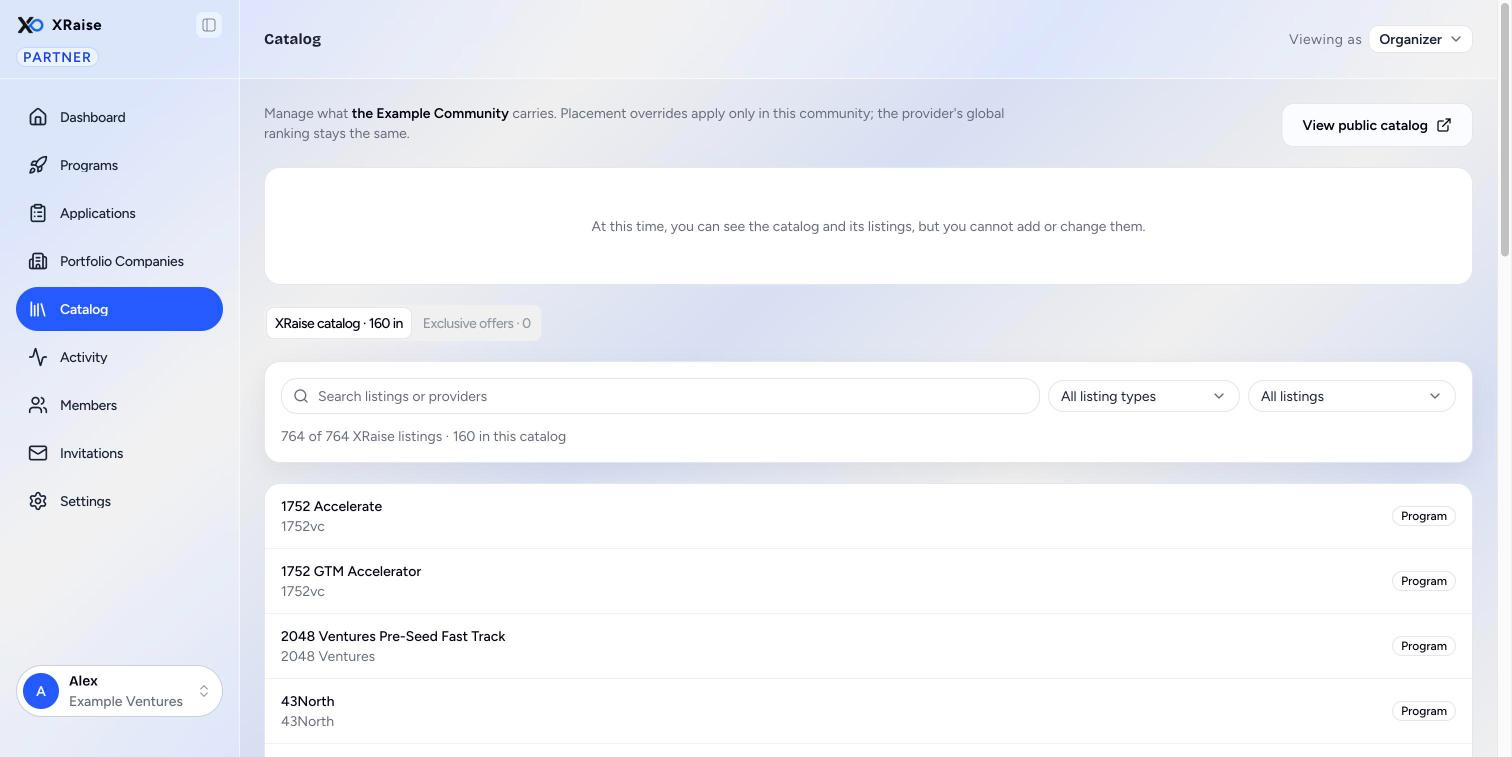
At this time, catalog editing is paused in the partner panel. You can see the catalog and every listing, but you cannot add, remove, place or create listings. The screen shows: "At this time, you can see the catalog and its listings, but you cannot add or change them." The menu item is called **Catalog** while editing is paused. To change your catalog now, contact XRaise.
## Shared and exclusive listings [#shared-and-exclusive-listings]
Your community catalog holds two kinds of listing:
| Kind | Where it comes from | Who sees it |
| ------------------------------------ | ------------------------------------------------------------------------------------------ | ------------------------------------------------------------------- |
| **Shared** (from the XRaise catalog) | A perk or program that is in the XRaise catalog. Your community carries it too. | Founders in the XRaise catalog, and your members in your community. |
| **Exclusive** | A perk your organization created for your community only. It is not in the XRaise catalog. | Only people in your community. |
Rules:
* Removing a listing from your catalog does not delete it. "The provider listings are not deleted." A shared listing stays in the XRaise catalog.
* In an **Invite only** community, founders must be members before they can apply through the community.
* A new exclusive perk is a draft until XRaise publishes it. It shows on the **Exclusive offers** tab either way.
## The screen, top to bottom [#the-screen-top-to-bottom]
 ### The header [#the-header]
The line at the top says: "Manage what (community name) carries. Placement overrides apply only in this community; the provider's global ranking stays the same."
| Button | What it does |
| ------------------------- | ------------------------------------------------------------------------------------------------------------------------------------------------------------------------------ |
| **View public catalog** | Opens your community page, /community/(slug), in a new tab. |
| **Create exclusive perk** | Opens the form for a new exclusive perk. Paused while catalog editing is paused. Shows only when your organization may create exclusive perks. |
| **Your authored perks** | Opens the list of perks your organization wrote. Paused while catalog editing is paused. If the list is empty, it shows "No perks yet" and a **Create exclusive perk** button. |
### The two tabs [#the-two-tabs]
| Tab | What it shows |
| -------------------------------- | ----------------------------------------------------------------------------------- |
| **XRaise catalog · (number) in** | Every listing in the XRaise catalog. The number is how many your community carries. |
| **Exclusive offers · (number)** | The exclusive listings of your community. |
### The XRaise catalog tab [#the-xraise-catalog-tab]
Use the tools at the top to find listings:
| Control | Choices |
| -------------------------------- | --------------------------------------------------------------- |
| **Search listings or providers** | Type part of a listing name or a provider name. |
| **Listing type** | **All listing types**, **Perks**, **Programs**. |
| **Membership** | **All listings**, **In this catalog**, **Not in this catalog**. |
A line under the tools counts the results, for example "40 of 312 XRaise listings · 25 in this catalog".
Each row shows:
* The listing name and the provider. "No provider" shows when none is recorded.
* The listing type.
* **In catalog**, when your community carries the listing.
* The placement, for a listing your community carries. See [Placement](#placement).
The list shows a page at a time. Use the page controls at the bottom.
A listing your community carries that is no longer published in the XRaise catalog still shows here, so you can see it and remove it.
### The Exclusive offers tab [#the-exclusive-offers-tab]
Each row shows the listing name, the provider, the listing type, its status (for example **Draft** or **Published**) and its placement.
If there are none, the tab says "No exclusive offers yet".
## Placement [#placement]
Placement decides the order of listings in your community catalog only. It never changes the order in the XRaise catalog.
| Placement text | Meaning |
| ------------------------------ | ----------------------------------------------------------------------------- |
| **Follows global** | The listing uses the provider's global ranking. This is the most common case. |
| **Priority (number)** | Your community set its own priority for the listing. |
| **Featured · global (number)** | The listing is featured, and uses the global ranking. |
| **Featured · (number)** | The listing is featured, with your own priority. |
How the order works:
* A featured listing comes before every listing that is not featured.
* A higher priority number comes first. Priority is a whole number from 0 to 10,000.
* An empty priority follows the provider's global ranking.
## Tasks (paused) [#tasks-paused]
These tasks need catalog editing, which is paused at this time. They describe the screen when editing is turned on. Owners and admins can then do them.
### How to add XRaise listings to your catalog [#how-to-add-xraise-listings-to-your-catalog]
1. Open the **XRaise catalog** tab.
2. Set **Membership** to **Not in this catalog**.
3. Search or filter to find the listings.
4. Select the listings. **Select all (number)** selects every listing that matches the filters, on all pages.
5. Click **Add (number) to catalog**.
### How to remove listings [#how-to-remove-listings]
1. Select the listings that your community carries.
2. Click **Remove (number)**.
3. Read the dialog: "They leave this community catalog. The provider listings are not deleted."
4. Click **Remove listings**.
To remove one listing, click the bin icon on its row, then click **Remove listing**.
### How to feature a listing or set its priority [#how-to-feature-a-listing-or-set-its-priority]
1. Click **Placement** on the row.
2. Tick **Feature at top** to feature it.
3. Type a number in **Priority**, or leave it empty to follow the global ranking. The panel shows the global ranking: "Empty follows the provider's global ranking, (number)."
4. Click **Save**. Click **Cancel** to close without a change.
To change many listings at once, select them and click **Feature**, **Unfeature** or **Clear priority**. If the change stops part of the way, a message says how many listings changed. Check their placement and try again.
### How to create an exclusive perk [#how-to-create-an-exclusive-perk]
1. Click **Create exclusive perk**. The form opens at /partner/catalog/new.
2. Fill in the perk form. A banner says: "This perk is scoped to your community catalog, not the global catalog."
3. Click **Submit exclusive perk**.
4. Read the dialog **Perk created, waiting on XRaise**. The perk is in your catalog as a draft. Members cannot see it until XRaise approves it. You can edit the draft in the meantime.
5. Click **Back to catalog**.
If your organization may not create exclusive perks, the form page says "This organization cannot create community-exclusive perks."
### How to edit an exclusive perk [#how-to-edit-an-exclusive-perk]
Click **Edit** on its row in **Exclusive offers**. **Edit** shows only on listings your organization wrote.
On the perk form, the link at the top, **Cancel** and a saved perk take you back to **Catalog**.
## Common questions [#common-questions]
**Does removing a listing delete it?**
No. It only leaves your community catalog.
**Does featuring a listing change the XRaise catalog?**
No. Placement applies only in your community.
**Why can I not edit a shared listing?**
The text of a listing belongs to the organization that wrote it. You can only change where it shows in your community.
# Community settings (https://docs.xraise.ai/community/community-settings)
The community **Settings** screen holds the basics that your members see: the name, the visibility, the branding and the landing page text.
## Who sees this screen and how to get to it [#who-sees-this-screen-and-how-to-get-to-it]
* Partner organizations that run a community.
* On the community overview (your **Dashboard**), click **Community settings**. The address is /partner/community/(community id)/settings. There is no menu item for it.
* **Owners** and **Admins** can save changes. A **Member (read-only)** sees "You have read-only access. A partner owner or admin can update settings." and the fields are greyed out.
This screen is not the partner [Settings](./settings.mdx) item in the left menu. That one holds your partner organization and your team.
 ## The fields [#the-fields]
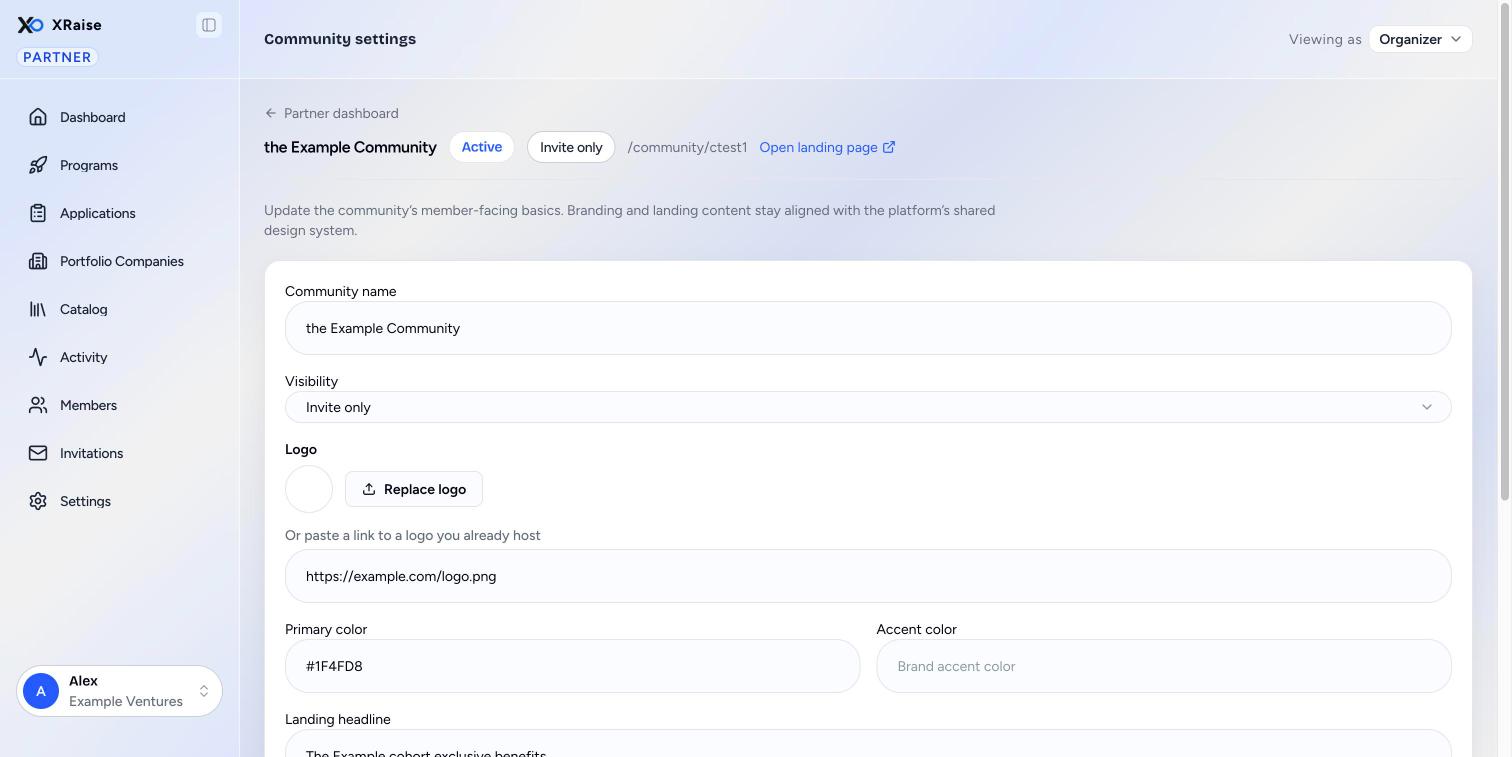
| Field | Required | Limits | Where founders see it |
| -------------------- | -------- | ------------------------------------------------------------------------------------------ | ------------------------------------------------------------------------------- |
| **Community name** | Yes | 1 to 120 characters. | The community landing page, the community bar and the founder's community list. |
| **Visibility** | Yes | **Public** or **Invite only**. | Decides how founders join. See below. |
| **Logo** | No | Upload a JPEG, PNG or WebP image, up to 2 MB. Or paste a link to a logo you already host. | The landing page and the community branding. |
| **Primary color** | No | A # and six hex digits (0 to 9 and A to F, upper or lower case), for example #1A73E8. | The community branding. |
| **Accent color** | No | A # and six hex digits, for example #FF7A00. | The community branding. |
| **Landing headline** | No | Up to 160 characters. | The headline of the landing page. |
| **Landing summary** | No | Up to 1,000 characters. | The text under the headline. |
| **Hero image URL** | No | A full web link, for example [https://example.com/hero.jpg](https://example.com/hero.jpg). | The large image on the landing page. |
To clear an optional value, empty the field and save.
Under each color field, the hint "Format: # and six hex digits, for example #1A73E8." tells you the format. If you type a color in another format, for example a color name or a short code like #FFF, the hint changes to the red message "Enter the color as # and six hex digits, for example #1A73E8." and **Save changes** does not send the form. Correct the color, then save again.
## Visibility [#visibility]
| Choice | How founders join | Invitations |
| --------------- | ----------------------------------------------------------------------------------------------- | ---------------------------------------------------------------- |
| **Public** | Anyone signed in to XRaise can join from the landing page. | Not needed. You cannot create new invitation links. |
| **Invite only** | Founders join with an invitation link. The landing page shows your branding but no way to join. | You create links on the [Invitations](./invitations.mdx) screen. |
When you change a public community to invite only, existing members stay. Old invitation links that are still active start to control entry again.
## Things you cannot change here [#things-you-cannot-change-here]
* The community address, /community/(slug). XRaise sets it.
* The status (**Active**, **Draft** or **Archived**). XRaise sets it. The landing page shows only when the community is **Active**.
## How to change the branding [#how-to-change-the-branding]
1. On your **Dashboard**, click **Community settings**.
2. Click **Upload logo** and pick an image. Or paste a link under "Or paste a link to a logo you already host". Wait until "Uploading logo…" ends.
3. Type the **Primary color** and the **Accent color** as hex colors.
4. Type the **Landing headline** and the **Landing summary**.
5. Optional: paste a **Hero image URL**.
6. Click **Save changes**.
7. Click **Open landing page** in the community bar to check the result.
The button shows "Saving…" while it saves. When the save works, the message "Community updated" shows. If XRaise refuses a value, an error shows under the form.
## Common questions [#common-questions]
**Why is Save changes greyed out?**
You have read-only access, or a logo is still uploading.
**Why does my landing page not open?**
The landing page shows only when XRaise has set the community to **Active**.
# Portfolio companies (https://docs.xraise.ai/community/companies)
The **Portfolio companies** screen lists the startup organizations in your community, with their activity and their engagement score.
## Who sees this screen and how to get to it [#who-sees-this-screen-and-how-to-get-to-it]
* Partner organizations that run a community. Every member of the partner team can open it. Nothing on this screen can be changed.
* Click **Portfolio companies** in the left menu (/partner/companies).
* Or click **Portfolio companies** on the community overview (/partner/community/(community id)/companies).
## Which companies show [#which-companies-show]
A company shows when at least one of its people is an active member of your community. The list is current membership: a company leaves the list when its members leave or are suspended. The counts on each company cover every application it filed through your community so far.
{/* SCREENSHOT: /partner/companies | the list with the Engagement mix bar and three company rows */}
## The screen, top to bottom [#the-screen-top-to-bottom]
### The header [#the-header]
A line explains the screen. The engagement score shows community participation and the alignment evidence XRaise has. It is not an AI, match, quality or potential score.
The button **Portfolio overview** goes back to the community overview.
### Search and filters [#search-and-filters]
| Control | What it does |
| ------------------------------------ | -------------------------------------------------------------- |
| **Search companies, stage, sector…** | Finds companies by name, stage, sector or category. |
| **Stage** | **All stages**, or one stage that a company in the list has. |
| **Sector** | **All sectors**, or one sector that a company in the list has. |
A line under the filters counts the results, for example "12 of 40 portfolio companies". Click the clear link to reset the search and filters.
### Engagement mix [#engagement-mix]
A bar shows the average make-up of the engagement score over all companies in the list. The text under it says how many companies have alignment evidence.
### The company list [#the-company-list]
| Column | What it shows |
| ------------------ | ------------------------------------------------------------------------------------------------------------------------------------------------------------ |
| **Company** | The logo, the name, the stage and sector ("Stage and sector not recorded" when both are empty), the categories, and the number of members in your community. |
| **Submissions** | Every application record of the company, including waitlist records. Under it: "Last (date)" or "No submissions yet". |
| **Pending** | Applications that wait for a decision. |
| **Approved value** | The USD value of approvals that recorded a fixed amount. |
| **Cashback paid** | Cashback marked paid. |
| **Engagement** | The score, its level and a breakdown. See below. |
**Submissions** counts more than the **Applied** step of the funnel on the overview, because it includes waitlist records.
## Engagement [#engagement]
Each company gets a score from 0 to 100, made of five parts:
| Part | Up to |
| ---------------------------------------------- | --------- |
| Organization alignment | 35 points |
| Recency | 25 points |
| Activity | 20 points |
| Categories (how many categories it applied in) | 10 points |
| Team (how many of its people take part) | 10 points |
The level badge:
| Level | Score |
| ---------- | ------------ |
| **high** | 70 or more |
| **medium** | 35 to 69 |
| **low** | Less than 35 |
When XRaise has no alignment evidence for a company, the alignment part is not counted. The company can then earn up to 65 points. The cell shows "65 pts available", and the hover text says "Organization alignment unavailable". Hover over the cell to see each part.
## Empty states [#empty-states]
* "No portfolio companies yet": no active member belongs to a startup organization yet.
* "No companies match these filters": change the search or clear the filters.
## Common questions [#common-questions]
**Why did a company leave the list?**
Its people left the community or were suspended. Its past applications still count on the overview.
**Can I see the founders' answers here?**
No. This screen shows companies and outcomes. To read the claims, see [The Applications screen](./activity.mdx#the-applications-screen).
# Dashboard (https://docs.xraise.ai/community/dashboard)
The **Dashboard** is your home page in the partner panel. For a community organizer, it shows the overview of your community.
## Open the dashboard [#open-the-dashboard]
* Click **Dashboard** in the menu.
* Or open the partner panel address without a page name. XRaise opens the **Dashboard**.
## The community overview [#the-community-overview]
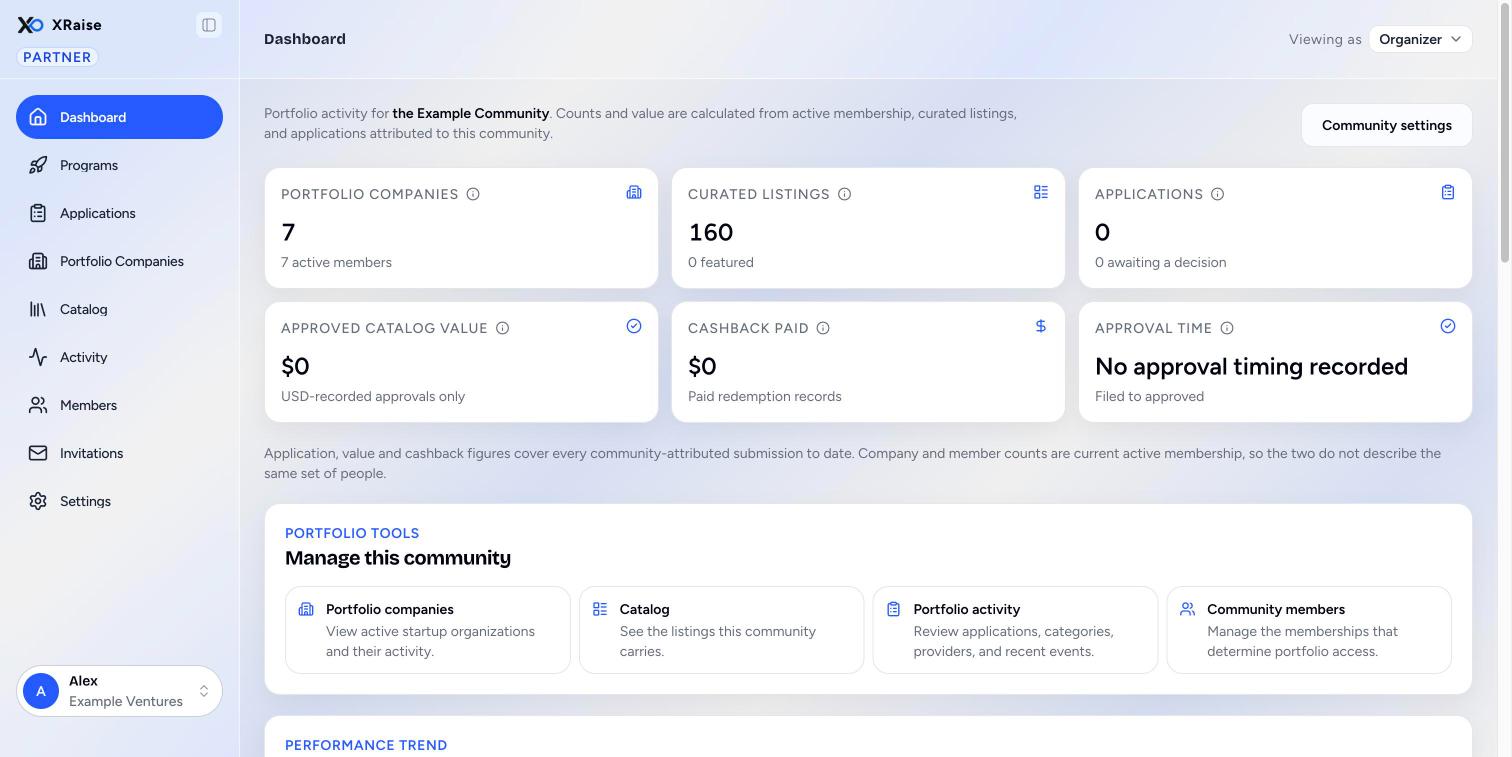 The overview is at /partner/dashboard and at /partner/community/(community id). It shows "Portfolio activity for (community name)." The counts and the value come from active membership, the listings in your catalog, and applications that came through your community.
The button **Community settings** opens [Community settings](./community-settings.mdx).
### The metric cards [#the-metric-cards]
Each card has an ⓘ that explains what it counts.
| Card | Figure | Note under the figure |
| -------------------------- | ---------------------------------------------------------------------------------------------------------------------------------------- | ----------------------------- |
| **Portfolio companies** | Startup organizations with at least one active member of your community, now. The figure falls when people leave. | The number of active members. |
| **Curated listings** | Listings in your community catalog today. Removed listings are not counted. | How many are featured. |
| **Applications** | Every application that came through your community, for all time. | How many wait for a decision. |
| **Approved catalog value** | The sum of approvals that recorded a fixed USD amount. This is a floor, not a total: percentage discounts and programs record no amount. | "USD-recorded approvals only" |
| **Cashback paid** | Redemption records marked paid. Money that moved, never an estimate. | "Paid redemption records" |
| **Approval time** | The median time from filing to approval. Half of the approvals were faster, half slower. | "Filed to approved" |
Under the cards, a line explains that application, value and cashback figures cover all time, while company and member counts are current membership. The two do not describe the same set of people.
### Manage this community [#manage-this-community]
Five links open the community screens:
* **Portfolio companies**: "View active startup organizations and their activity." See [Portfolio companies](./companies.mdx).
* **Catalog**: "See the listings this community carries." See [Catalog](./catalog.mdx).
* **Portfolio activity**: "Review applications, categories, providers, and recent events." See [Activity](./activity.mdx).
* **Community members**: "Manage the memberships that determine portfolio access." See [Members](./members.mdx).
* **Invitations**: "Create and revoke the links that let people join." See [Invitations](./invitations.mdx).
### The charts [#the-charts]
| Panel | What it shows |
| ------------------------------------------------- | ---------------------------------------------------------------------------------------------------------------------------------------------------------------------------------------------------------------------------- |
| **Applications and approved value over 12 weeks** | One pair of bars per week. Blue is applications. Green is approved value. The two colors use separate scales, so compare each color only with itself. Hover over a week to see applications, activations and approved value. |
| **Application funnel** | **Interested**, **Applied** and **Awaiting a decision**. Each percentage is against the stage above it, not against the total. |
| **Time to approval** | Approved applications grouped by how long they waited. The heading is the median. |
| **Activations mix by category** | The six categories with the most approvals, with approvals and applications. |
| **Engagement by startup stage** | The average engagement score (out of 100) of companies at each stage, with the number of companies and submissions. See [Portfolio companies](./companies.mdx#engagement). |
| **Top provider partners** | The eight providers with the highest approved value in your community: applications, approvals and approved value. |
A panel with no data says so, for example "No weekly activity yet." If one panel fails to load, the others still show, and the failed one has a **Try again** button.
## Common questions [#common-questions]
**Why do the company count and the application count not match?**
Company and member counts are current membership. Application figures cover all time, including people who left.
# Common questions (https://docs.xraise.ai/community/faq)
## Access and sign-in [#access-and-sign-in]
**How do I get access to the partner panel?**
XRaise connects the first person when it sets up your organization. After that, an owner or an admin of your organization invites other people from **Settings**.
**Do I need a password?**
No. You sign in with a one-time code that XRaise sends to your email address, or with a social login.
**I signed in, but I see the founder dashboard. How do I open the partner panel?**
Use the **Viewing as** switcher in the top bar and select **Organizer**. If you do not see the switcher, your account does not have partner access yet. Ask an owner or an admin of your organization to invite you.
**Why do I not see a menu item that a colleague in another organization sees?**
The menu depends on your type of organization: vendor, accelerator or community organizer. Each type has its own part of this guide. Choose your type in the selector at the top of the sidebar.
**I opened a link and the panel said "That screen belongs to another kind of partner organization". Why?**
The screen is for a different type of organization. The panel takes you back to your **Dashboard**.
**Why can I see everything but change nothing?**
You have the **Member** role, which is read only. Ask an owner or an admin to make you an admin.
For more about access, see [Getting started](./index.mdx).
## Your community [#your-community]
**I run more than one community. Which one do the short links open?**
The short links open your largest community, by active members. To work on another community, use the address with its community id.
**Where do founders see my community?**
On its landing page, /community/(slug), and in their own dashboard after they join.
**What is the difference between Settings and Community settings?**
[Settings](./settings.mdx) holds your partner organization and your team. [Community settings](./community-settings.mdx) holds the name, visibility, branding and landing page of your community.
## Applications [#applications]
**Why does "Waiting" show in a warning color?**
The application has waited more than 7 days for a decision.
**Why does the row show "Full report"?**
This feature is not ready yet. Click it and the panel shows "Coming soon".
**Can I approve or decline a claim that came through my community?**
No. XRaise decides every perk claim. You can follow each claim on the [Applications screen](./activity.mdx#the-applications-screen).
## Team and organization [#team-and-organization]
**Why can I not remove a teammate?**
They are probably the last owner or admin. Make another person an admin first.
**An invitation expired. What do I do?**
Click **Resend** under **Pending invites** in **Settings**.
To change the logo, the website and the description of your organization, or to manage your team, see [Settings](./settings.mdx).
# Getting started (https://docs.xraise.ai/community)
A **community** is a branded space on XRaise that a partner organization runs. It has its own landing page, its own members and its own catalog of perks and programs. The **community workspace** is the set of partner screens you use to run it.
If your organization also offers perks or runs programs, choose Vendor or Accelerator in the selector at the top of the sidebar.
## Who sees the community workspace [#who-sees-the-community-workspace]
* Partner organizations that run a community. XRaise staff create the community and link it to your organization.
* Every member of your partner team can open these screens. What you can change depends on your role:
| Role | What you can do |
| ---------------------- | --------------------------------------------------------------------------------------- |
| **Owner** or **Admin** | Change settings, create and revoke invitation links, suspend and restore members. |
| **Member (read-only)** | See every screen. You cannot change anything. Screens show "You have read-only access." |
## The menu [#the-menu]
The menu is on the left side of the screen. A community organizer sees these items:
| Menu item | Address | What it opens |
| ----------------------- | --------------------- | ---------------------------------------------------------------------------------------------------------------------------- |
| **Dashboard** | /partner/dashboard | The community overview. See [Dashboard](./dashboard.mdx). |
| **Applications** | /partner/applications | The claims that founders sent through your community. See [The Applications screen](./activity.mdx#the-applications-screen). |
| **Portfolio companies** | /partner/companies | See [Portfolio companies](./companies.mdx). |
| **Catalog** | /partner/catalog | See [Catalog](./catalog.mdx). |
| **Activity** | /partner/activity | See [Activity](./activity.mdx). |
| **Members** | /partner/members | See [Members](./members.mdx). |
| **Invitations** | /partner/invitations | See [Invitations](./invitations.mdx). |
| **Settings** | /partner/settings | Your partner organization profile and your team. See [Settings](./settings.mdx). |
Each community link opens the same screen as the long address that names the community, for example /partner/community/(community id)/members. The long addresses are the ones the overview links to. Both show the same data.
The address /partner/community has no screen of its own. It takes you to your **Dashboard**. **Community settings** has no menu item: open it with the **Community settings** button on the overview. See [Community settings](./community-settings.mdx).
At this time, catalog editing is paused in the partner panel. See [Catalog](./catalog.mdx).
## The community bar [#the-community-bar]
On every screen under /partner/community/(community id), a bar at the top shows:
* **Partner dashboard**: a link back to your **Dashboard**.
* The community name.
* The status: **Active**, **Draft** or **Archived**. XRaise staff set the status.
* The visibility: **Public** or **Invite only**. You set it in [Community settings](./community-settings.mdx).
* The address of the landing page, /community/(slug).
* **Open landing page**: opens the community landing page in a new tab. It shows only when the community is **Active**.
## Get partner access [#get-partner-access]
You get access to the partner panel in one of two ways:
* **XRaise adds you.** When XRaise sets up a partner organization, XRaise staff connect the first login to it. Contact XRaise if your organization is not set up yet.
* **A teammate invites you.** An owner or an admin of your organization sends you an invitation by email. Open the link in the email and sign in with the same email address. The **Settings** page tells how to invite a teammate.
You sign in with a one-time code that XRaise sends to your email address, or with a social login. There is no password.
After you sign in, XRaise opens your home panel. For a person who has only partner access, this is the partner **Dashboard**.
### What your role lets you do [#what-your-role-lets-you-do]
Each person on a partner team has one role: **Owner**, **Admin** or **Member**. An owner or an admin can change things. A member has read-only access: a member sees every screen but cannot change anything. The **Settings** page tells what each role can do.
When you have read-only access, the screens show a notice such as "You have read-only access. A partner owner or admin can change these settings."
## Switch between the founder view and the partner panel [#switch-between-the-founder-view-and-the-partner-panel]
Some people use XRaise both as a founder and as a partner. These people see the role switcher in the top bar, with the label **Viewing as**.
The switcher shows each role that you have:
* **Normal user**: the founder dashboard.
* **Organizer**: the partner panel.
* **Admin**: the XRaise staff panel. Only XRaise staff have this role.
To switch:
Click the switcher next to **Viewing as** in the top bar.
Select the role that you want to use.
XRaise opens the home page of that role. If you have unsaved changes on the screen, XRaise asks you before it leaves the screen.
If you have only one role, the switcher does not show. If you open a panel that is not yours, the top bar shows **Go to your console**. Click it to go back to your own panel.
## The top bar and your account menu [#the-top-bar-and-your-account-menu]
### The top bar [#the-top-bar]
The top bar shows the name of the screen that is open. On the right side, it can show the role switcher. See [Switch between the founder view and the partner panel](#switch-between-the-founder-view-and-the-partner-panel).
### Your account menu [#your-account-menu]
The bottom of the menu shows your name, your email address and the name of your organization. The label **Partner** shows that you are in the partner panel. Click your name to open your account menu. Use it to sign out.
If you also use XRaise as a founder, the account menu also shows the links to your founder settings, and to **Upgrade** when your founder workspace is on the free plan. These links open the founder dashboard.
## Screens for another type of partner [#screens-for-another-type-of-partner]
XRaise sets up each partner organization as one or more types: vendor, accelerator or community organizer. The type controls which menu items you see. Each type has its own part of this guide. Choose your type in the selector at the top of the sidebar.
If you open the address of a screen that is not for your type of organization, the panel shows "That screen belongs to another kind of partner organization. Taking you back to your overview…" and then opens your **Dashboard**.
To invite a teammate, see [Invite a teammate](./settings.mdx#invite-a-teammate). For what each role can do, see [Roles](./settings.mdx#roles).
## Map of this guide [#map-of-this-guide]
| Page | Read it to |
| ---------------------------------------------- | ------------------------------------------------------------------------- |
| [Dashboard](./dashboard.mdx) | Read the community overview, its figures and its charts. |
| [Catalog](./catalog.mdx) | See the listings that your community carries, and how placement works. |
| [Portfolio companies](./companies.mdx) | See the startups in your community. |
| [Members](./members.mdx) | Manage the founders in your community. |
| [Invitations](./invitations.mdx) | Create and share invitation links. |
| [Activity](./activity.mdx) | See the applications that came through your community. |
| [Community settings](./community-settings.mdx) | Change the name, visibility, branding and landing page of your community. |
| [Settings](./settings.mdx) | Change your organization profile and manage your team. |
| [Statuses](./statuses.mdx) | Look up what each status means. |
| [Common questions](./faq.mdx) | Find quick answers. |
# Invitations (https://docs.xraise.ai/community/invitations)
The **Invitations** screen is where you create the links that let founders join your community.
## Who sees this screen and how to get to it [#who-sees-this-screen-and-how-to-get-to-it]
* Partner organizations that run a community.
* Click **Invitations** in the left menu (/partner/invitations).
* From the community overview, click **Invitations** under **Manage this community** (/partner/community/(community id)/invitations). Both addresses show the same screen.
* **Owners** and **Admins** can create and revoke links. A **Member (read-only)** sees "You have read-only access. A partner owner or admin can create or revoke invitations."
## Community invitations and team invitations [#community-invitations-and-team-invitations]
XRaise has two kinds of invitation. Do not mix them up.
| | Community invitation | Team invitation |
| ------------- | -------------------------------------------------------------------------------------- | ------------------------------------------------------------------------------------------------ |
| Where | **Invitations** screen | Partner [Settings](./settings.mdx) screen |
| Who it is for | Founders who join your community | People who work with you in the partner panel |
| How it works | A link you copy and share yourself. Anyone with the link can use it, up to its limits. | An email to one address, with a role: **Member (read-only)** or **Admin (can edit and invite)**. |
| What it gives | Membership of your community | Access to your partner panel |
## What the screen shows depends on visibility [#what-the-screen-shows-depends-on-visibility]
### Public community [#public-community]
{/* SCREENSHOT: /partner/invitations | a public community with the share panel */}
A public community does not need invitations. Anyone signed in can join from the landing page. The screen says: "This community is public, so it is joined from its landing page rather than by invitation."
The panel **This community is public, share its page** shows the landing page link, with two buttons:
* **Copy link**: copies the link. You see "Link copied. Anyone signed in can join from this page."
* **Open page**: opens the landing page in a new tab.
You cannot create an invitation link for a public community. To control who can join, change **Visibility** to **Invite only** in [Community settings](./community-settings.mdx).
Links created before the community became public still work. They stay in the list, and you can revoke them. Revoking them changes who can enter only if the community becomes invite only again.
### Invite only community [#invite-only-community]
{/* SCREENSHOT: /partner/invitations | an invite-only community with the create form and two links in the list */}
The screen says: "Invite founders into this community. Each invitation is a link you can copy at any time from the list below."
## The create form [#the-create-form]
| Field | Required | Limits | What it does |
| ------------- | -------- | ---------------------------------------------------------------------- | ------------------------------------------------------------------------------------------------------------------------------ |
| **Link path** | No | 3 to 64 characters. Lowercase letters, digits and single hyphens only. | The end of the link, after /community-invitations/. Example: spring-cohort-2027. Leave it empty and XRaise makes a random one. |
| **Expires** | No | A date and time. | After this time, the link stops working. Empty means it never expires. |
| **Max uses** | No | A whole number, 1 or more, up to 100,000. | How many people can join with the link. Empty means "Unlimited". |
Error texts for **Link path**:
* "Use 3 to 64 characters."
* "Use lowercase letters, digits and single hyphens only."
* "This link path is already in use. Choose another one." A link path can be used only once, also after its link is revoked.
## How to create an invitation link [#how-to-create-an-invitation-link]
1. Click **Invitations** in the left menu.
2. Optional: type a **Link path**.
3. Optional: set **Expires** and **Max uses**.
4. Click **Create invitation**.
5. The dialog **Copy your invitation link** shows the link. Click **Copy link**.
6. Click **Done**.
7. Send the link to the founders you invite.
You can copy the link again at any time from the list.
## The invitation list [#the-invitation-list]
Each link shows:
* Its state, as a tag: **Active**, **Expired**, **Used up** or **Revoked**.
* How many times it was used, for example "3 / 10 used".
* "Created (date) · Expires (date)" or "Expires never".
* The link and **Copy link**, for an active link only.
* **Revoke**, for an active link and for owners and admins only.
| State | Meaning |
| ----------- | ---------------------------------- |
| **Active** | The link works. |
| **Expired** | The **Expires** time has passed. |
| **Used up** | The link reached its **Max uses**. |
| **Revoked** | Someone revoked the link. |
Some older links do not show their address, because XRaise did not keep it at the time. They still work until they expire, run out or are revoked.
## How to revoke a link [#how-to-revoke-a-link]
1. Find the link in the list.
2. Click **Revoke**.
3. Read the dialog **Revoke this invitation link?**.
4. Click **Revoke link**.
You see "Invitation revoked".
You cannot restore a revoked link, and you cannot use its link path again. People who already joined with the link stay members.
## What a founder sees [#what-a-founder-sees]
1. The founder opens the link.
2. XRaise shows your community and asks them to sign in, if they are not signed in.
3. The founder accepts the invitation and becomes a member.
A link that expired, ran out or was revoked does not work. A suspended member cannot join with any link. A link into an archived community does not work.
## Common questions [#common-questions]
**Does XRaise send the invitation by email?**
No. You copy the link and share it yourself.
**Does a person who is already a member use up a link?**
No. A use is counted only when someone new joins.
**Can I change the limits of a link?**
No. Revoke it and create a new one.
# Members (https://docs.xraise.ai/community/members)
The **Members** screen lists the people in your community. You can suspend a member and restore a suspended member.
## Who sees this screen and how to get to it [#who-sees-this-screen-and-how-to-get-to-it]
* Partner organizations that run a community.
* Click **Members** in the left menu (/partner/members).
* Or click **Community members** on the community overview (/partner/community/(community id)/members).
* **Owners** and **Admins** can suspend and restore. A **Member (read-only)** sees "You have read-only access. A partner owner or admin can suspend and restore members."
## How people become members [#how-people-become-members]
* In a **Public** community, anyone signed in to XRaise can join from the community landing page.
* In an **Invite only** community, people join with an invitation link. See [Invitations](./invitations.mdx).
Members show here after they join or accept an invitation.
{/* SCREENSHOT: /partner/members | the active list and the Suspended section with one person */}
## The screen, top to bottom [#the-screen-top-to-bottom]
The line at the top says: "Members of this community. Suspending someone bars that login from rejoining, through the landing page or an invitation, until you restore them."
### The member list [#the-member-list]
Each row shows:
* The name. If XRaise has no name, the email shows. If it has neither, "Member #" and a short code show.
* A second line with the email or the short code, when it adds something.
* "Joined (date)".
* **Suspend**, for owners and admins.
### Suspended [#suspended]
When you have suspended members, a section **Suspended (number)** shows under the list. It says: "These logins cannot rejoin this community until you restore them. Their account and submission history are untouched."
Each row shows the **Suspended** tag, "Suspended (date)" and **Restore**.
## What suspending does [#what-suspending-does]
When you suspend a member:
* They lose access to your community catalog and community dashboard.
* They cannot rejoin, not from the landing page and not with an invitation, until you restore them.
* Their XRaise account and their application history are not deleted.
## How to suspend a member [#how-to-suspend-a-member]
1. Find the person in the list.
2. Click **Suspend**.
3. Read the dialog **Suspend (name)?**.
4. Click **Suspend member**.
You see "(name) suspended". The person moves to the **Suspended** section.
## How to restore a member [#how-to-restore-a-member]
1. Find the person in the **Suspended** section.
2. Click **Restore**.
There is no confirmation step, because you can undo it. You see "(name) restored". The person moves back to the member list.
## Empty states [#empty-states]
* "No members yet": nobody has joined.
* "No active members": everyone in the community is suspended.
## Common questions [#common-questions]
**Does a suspended person get an email?**
No. If they try to join again, XRaise tells them that the community organizer suspended their access.
**Can a suspended person use an old invitation link?**
No. Suspension blocks every way back in until you restore them.
**What is the difference between a community member and a teammate?**
A community member is a founder in your community. A teammate is a person on your partner team who uses the partner panel. You invite teammates on the partner [Settings](./settings.mdx) screen.
# Settings (https://docs.xraise.ai/community/settings)
This page is about your partner organization and your team. To change the name, visibility, branding or landing page of your community, see [Community settings](./community-settings.mdx).
The **Settings** screen holds two things: the profile of your organization, and the team of people who can sign in to your partner workspace. The top bar shows the title **Organization settings**.
## Who sees this screen [#who-sees-this-screen]
Every person on a partner team sees **Settings** in the menu, in every type of organization.
* An **owner** or an **admin** can change the profile and manage the team.
* A **member** can read the screen but cannot change anything. The screen shows "You have read-only access. A partner owner or admin can change these settings."
{/* SCREENSHOT: /partner/settings | the Organization section and the Team section, signed in as an admin */}
## Organization [#organization]
This section sets how your company appears on every listing that you publish.
| Field | Required | Limits | What it is for |
| --------------------- | ------------ | -------------------------------------------------------------------------------------------------------------------------- | --------------------------------------------------------------------------------------------- |
| **Organization name** | Not editable | Read only. The screen shows "Contact XRaise to rename your organization." | The name on every public card and on your partner page. |
| **Logo** | No | Upload a JPEG, PNG or WebP file, up to 2 MB. Or paste a link to a logo that you already host, up to 500 characters. | The mark on your listings. |
| **Website** | No | A full web address, up to 300 characters. Example: [https://acme.com](https://acme.com) | The link to your company. |
| **Description** | No | Up to 2,000 characters. You can format the text: bold, bullets, headings, links. A counter shows the number of characters. | The text on your public partner page: what your company does, and what founders get from you. |
To clear the website or the description, delete the text and save. If your organization has an older short text mark in place of a logo, it stays until you upload a logo or enter a link.
### Change your organization profile [#change-your-organization-profile]
Click **Settings** in the menu.
To change the logo, click **Upload logo** or **Replace logo**, and select a file. Or paste a link under "Or paste a link to a logo you already host".
Change **Website** or **Description** if you need to.
Click **Save changes**.
The message "Organization updated" shows. While the logo uploads, the button shows "Uploading logo…" and you cannot save.
## Team [#team]
This section lists the people who can sign in to your partner workspace. Each row shows:
* The name and the email address of the person. If XRaise cannot find the name, the row shows the email address, or "Invited by link".
* The role. An owner or an admin can change it here.
* **Joined**: the date when the person joined.
* **Remove**: shows only for an owner or an admin.
### Roles [#roles]
| Role | What the person can do | Who gives the role |
| ---------- | ------------------------------------------------------------------------------------------------------------------------------------------------------------------------------------------------------------------------ | --------------------------------------------------------- |
| **Owner** | Everything an admin can do. | XRaise. You cannot give or change this role in the panel. |
| **Admin** | Change the organization profile, invite and remove teammates, and change roles. An admin can also do every action that the other screens allow for your organization. The screen calls it "Admin (can edit and invite)". | An owner or an admin. |
| **Member** | Read every screen. Change nothing. The screen calls it "Member (read-only)". | An owner or an admin. |
Your organization must always have at least one owner or admin. The panel does not let you remove or demote the last one. It shows: "This is your organization's only owner or admin. Add another before removing this one, or nobody can manage the workspace."
### Invite a teammate [#invite-a-teammate]
Click **Settings** in the menu.
In **Teammate email**, type the email address of the person.
In **Role**, select **Member (read-only)** or **Admin (can edit and invite)**.
Click **Invite a teammate**.
The message "Invitation sent" shows. XRaise sends an email with a link. The person joins your workspace only when they open the link and accept it. They sign in with a one-time code. There is no password to share.
The invitation shows under **Pending invites**. The link expires after 7 days.
If the address already has an invitation, the panel shows: "That address already has an invitation outstanding. Resend or revoke it under Pending invites."
### Pending invites [#pending-invites]
This list shows only to owners and admins. Each row shows the email address, the role, the status and the expiry date.
| Status | Meaning |
| ----------- | ------------------------------------------------------- |
| **Sent** | The invitation waits for the person to accept it. |
| **Expired** | The 7 days passed. Click **Resend** to send a new link. |
| Button | What it does |
| ---------- | -------------------------------------------------------------------------------------------------------------------------------------------------------- |
| **Resend** | Sends the invitation email again, with a new expiry date. |
| **Revoke** | Opens a confirmation. After you click **Revoke invitation**, the link no longer works. This cannot be undone, but you can invite the person again later. |
### Change the role of a teammate [#change-the-role-of-a-teammate]
Find the person in the **Team** list.
Select the new role in the role list on their row.
The message "Role updated" shows. You cannot change the role of an owner. You can change the role only of a person who is already on the team. For a new person, send an invitation.
### Remove a teammate [#remove-a-teammate]
Find the person in the **Team** list.
Click **Remove**.
Click **Remove teammate** in the confirmation.
The person loses access to the partner workspace immediately. Their listings and the history of applications stay the same. You can invite them back later.
## Common questions [#common-questions]
**How do I rename my organization?**
Contact XRaise. The name shows on every public card, so XRaise controls it.
**How do I become an owner?**
Contact XRaise. Only XRaise gives the owner role.
**My teammate did not get the invitation. What do I do?**
Ask them to look in their spam folder. Then click **Resend** under **Pending invites**.
# Statuses (https://docs.xraise.ai/community/statuses)
This page lists the statuses of the claims that founders send through your community, and of your team invitations.
## Perk claim statuses [#perk-claim-statuses]
These tags show on each row of the **Applications** screen. The last column shows what the founder sees for each status.
| Tag | Meaning | Final | The founder sees |
| -------------------------- | ------------------------------------------------------------------------------ | ----- | ------------------------------------- |
| **On the waitlist** | The founder joined the queue of a perk that is not open yet. | No | Waitlisted |
| **Told it opened** | The perk opened, and XRaise told the founder. The founder has not applied yet. | No | It's open! |
| **Awaiting review** | The founder applied. XRaise has not decided yet. | No | In review |
| **Approved** | XRaise approved the claim. The founder can see the instructions. | Yes | Claimed |
| **Declined** | XRaise declined the claim, with a reason that the founder can read. | Yes | Rejected, with the reason from XRaise |
| **Expired** | The claim expired before a decision. | Yes | Expired |
| **Withdrawn by applicant** | The founder withdrew the claim. | Yes | Left |
| **Left the waitlist** | The founder left the queue before the perk opened. | Yes | Left |
| **Listing withdrawn** | The perk was taken down, and this closed the claim. | Yes | Left |
The **Latest community applications** feed on the [Activity](./activity.mdx#latest-community-applications) screen shows the same statuses in words, for example "was approved for".
## Final statuses [#final-statuses]
A final status cannot change. If the founder applies again, XRaise creates a new application.
## Community statuses [#community-statuses]
* The status of your community (**Active**, **Draft** or **Archived**) shows in the community bar. See [The community bar](./index.mdx#the-community-bar).
* The states of your community invitation links (**Active**, **Expired**, **Used up** or **Revoked**) show on the [Invitations](./invitations.mdx#the-invitation-list) screen.
## Invitation statuses [#invitation-statuses]
These show under **Pending invites** on the **Settings** screen.
| Status | Meaning |
| ----------- | -------------------------------------------------------------------------- |
| **Sent** | The invitation waits for the person to accept it. It expires after 7 days. |
| **Expired** | Nobody accepted the invitation in 7 days. Resend it to send a new link. |
An accepted invitation leaves the list, and the person shows in the **Team** list. A revoked invitation also leaves the list.
These are invitations for your partner team, not community invitation links. For the team roles, see [Roles](./settings.mdx#roles).
# Applications (https://docs.xraise.ai/vendor/applications)
The **Applications** screen lists the claims that founders sent on the perks that your organization wrote. You can read each claim and follow its status. XRaise decides every claim.
## Who sees this screen [#who-sees-this-screen]
Every person on your partner team sees **Applications** in the menu. You can read the claims and their status. You cannot approve or decline a claim.
### Who decides a perk claim [#who-decides-a-perk-claim]
A perk claim is always an XRaise decision. You see the notice "XRaise reviews perk claims. You can see each claim's status here." and no buttons on the rows.
## The filter bar [#the-filter-bar]
### Claim status [#claim-status]
| Button | Shows |
| ------------- | ------------------------------------------------------------------------ |
| **In review** | Claims that XRaise has not decided yet. The screen opens on this filter. |
| **Approved** | Claims that XRaise approved. |
| **Declined** | Claims that XRaise declined. |
| **Expired** | Claims that expired before a decision. |
| **All** | Every claim, in every status. |
### Search by startup [#search-by-startup]
Type the name of a startup. The list updates after you stop typing. Up to 120 characters.
### Order [#order]
* **Oldest first**: the founder who waited longest is first. This is the default.
* **Newest first**.
### Under the filter bar [#under-the-filter-bar]
The line under the bar shows the number of applications, for example "24 applications". If you changed a filter, it also shows **Clear filters**. Click it to go back to the default view.
The list shows 20 applications on each page. Use the page buttons at the bottom to see more.
## The claim row [#the-claim-row]
### What each row shows [#what-each-row-shows]
| Part | What it shows |
| --------------------- | ------------------------------------------------------------------------------------------------------------------------------------------- |
| Startup name | The startup that applied. |
| Status tag | The status of the application. The **Statuses** page tells what each status means. |
| Listing name | The listing that the founder applied to. |
| One-liner and website | When the answers include a one-line description of the startup or a website, the row shows them. Click the website to open it in a new tab. |
| **Filed** | The date when the founder applied. |
| **Waiting** | How long the application has waited for a decision. It changes to a warning color after more than 7 days. |
For the meaning of each status tag, and what the founder sees, see [Perk claim statuses](./statuses.mdx#perk-claim-statuses).
### Application answers [#application-answers]
Click **Application answers** to open the answers. Click **Hide** to close them. The number on the button is the number of answers.
* The first block lists every question on the form, with the count, for example "12 of 14 answered". A question that the founder did not answer shows "Not answered".
* The block **Also provided, not part of this form** shows other answers that the founder gave, for example answers to a follow-up question.
* A file answer shows **Download file**. Click it to open the file in a new tab.
For answers to common questions about claims, see [Common questions](./faq.mdx#applications).
# Dashboard (https://docs.xraise.ai/vendor/dashboard)
The **Dashboard** is your home page in the partner panel. It shows your perks in four figures. The full lists are on their own screens.
## Open the dashboard [#open-the-dashboard]
* Click **Dashboard** in the menu.
* Or open the partner panel address without a page name. XRaise opens the **Dashboard**.
## Vendor overview [#vendor-overview]
{/* SCREENSHOT: /partner/dashboard | vendor with three perks, one of them in review */}
### The four figures [#the-four-figures]
| Figure | What it counts | Click it to |
| -------------------- | ---------------------------------------------------------------------------------------------------------------------------------------------- | ---------------------------------------------------------------------- |
| **Offerings** | All the perks that your organization wrote. The line under it shows how many are live. | Open [Offerings](./offerings/index.mdx). |
| **Community spaces** | The communities that your organization runs, with the line "Curated catalogs". For most vendors, this is 0. | Open your community, if you have one. |
| **Review queue** | Your perks that wait for XRaise to approve them: new perks, and live perks with changes in review. The line under it says "Awaiting approval". | Not a link. |
| **Claims in review** | All the claims from founders on your perks that XRaise has not decided yet. The line under it says "XRaise decides perk claims". | Open [Applications](./applications.mdx) with the **In review** filter. |
A perk that XRaise sent back to you with changes requested is not in **Review queue**. It waits for you, not for XRaise. See [Changes requested](./statuses.mdx#offering-statuses).
### Under the figures [#under-the-figures]
* The line "Add perks for startups, each goes live once XRaise approves it."
* The link **See all N offerings**, where N is the number of your perks. Click it to open [Offerings](./offerings/index.mdx).
* If your organization has no perks yet, the panel shows "No perks yet" in place of the link.
At this time, the **Add perk** button does not show. Contact XRaise to add a perk. See [Add and edit an offering](./offerings/add-and-edit.mdx).
# Common questions (https://docs.xraise.ai/vendor/faq)
## Access and sign-in [#access-and-sign-in]
**How do I get access to the partner panel?**
XRaise connects the first person when it sets up your organization. After that, an owner or an admin of your organization invites other people from **Settings**.
**Do I need a password?**
No. You sign in with a one-time code that XRaise sends to your email address, or with a social login.
**I signed in, but I see the founder dashboard. How do I open the partner panel?**
Use the **Viewing as** switcher in the top bar and select **Organizer**. If you do not see the switcher, your account does not have partner access yet. Ask an owner or an admin of your organization to invite you.
**Why do I not see a menu item that a colleague in another organization sees?**
The menu depends on your type of organization: vendor, accelerator or community organizer. Each type has its own part of this guide. Choose your type in the selector at the top of the sidebar.
**I opened a link and the panel said "That screen belongs to another kind of partner organization". Why?**
The screen is for a different type of organization. The panel takes you back to your **Dashboard**.
**Why can I see everything but change nothing?**
You have the **Member** role, which is read only. Ask an owner or an admin to make you an admin.
For more about access, see [Getting started](./index.mdx).
## Perks [#perks]
**How do I add a new perk?**
At this time, you cannot add or change perks in the panel. Contact XRaise and send the information. See [Add and edit an offering](./offerings/add-and-edit.mdx).
**Why is my perk not visible to founders?**
Look at its status on the [Offerings](./offerings/index.mdx) screen. Founders see only a **Live** or **Waitlisted** perk. A perk with **Pending review** waits for XRaise. A perk with **Changes requested** waits for you.
**I changed a live perk. Why do founders still see the old version?**
XRaise reviews every change. Founders see the live version until XRaise approves the change. The status shows **Live · changes in review** during that time.
**What is the difference between automatic and manual approval?**
With automatic approval, a founder gets the instructions the moment they claim the perk. With manual approval, an XRaise operator decides each claim first. See [Automatic or manual approval](./offerings/add-and-edit.mdx#automatic-or-manual-approval).
**Can founders on the free plan claim my perk?**
Only if the perk is set to **Free: every founder can claim it**. Founders on a lower plan see the perk as locked, with an **Upgrade** button. See [Plan access](./offerings/add-and-edit.mdx#plan-access).
## Applications [#applications]
**Why does "Waiting" show in a warning color?**
The application has waited more than 7 days for a decision.
**Why does the row show "Full report"?**
This feature is not ready yet. Click it and the panel shows "Coming soon".
**Can I approve a claim on my perk?**
No. XRaise decides every perk claim. You can follow each claim on the [Applications](./applications.mdx) screen.
## Team and organization [#team-and-organization]
**Why can I not remove a teammate?**
They are probably the last owner or admin. Make another person an admin first.
**An invitation expired. What do I do?**
Click **Resend** under **Pending invites** in **Settings**.
To change the logo, the website and the description, or to manage your team, see [Settings](./settings.mdx).
# Getting started (https://docs.xraise.ai/vendor)
As a vendor, you give perks to startups: credits, discounts or cashback on your product or service. Use the partner panel to see your perks, follow the claims that founders send, and manage your organization and your team.
## The menu [#the-menu]
The menu is on the left side of the screen. A vendor sees these items:
| Menu item | What it opens |
| ---------------- | ------------------------------------------------------------------------------------------------- |
| **Dashboard** | Your home page. It shows your perks in four figures. See [Dashboard](./dashboard.mdx). |
| **Offerings** | The perks that your organization wrote, and their status. See [Offerings](./offerings/index.mdx). |
| **Applications** | The claims that founders sent on your perks. See [Applications](./applications.mdx). |
| **Settings** | Your organization profile and your team. See [Settings](./settings.mdx). |
At this time, you cannot add or change perks in the panel. You see the notice "At this time, you can see the catalog and its listings, but you cannot add or change them." To add a perk, or to change one, contact XRaise. See [Add and edit an offering](./offerings/add-and-edit.mdx).
## Get partner access [#get-partner-access]
You get access to the partner panel in one of two ways:
* **XRaise adds you.** When XRaise sets up a partner organization, XRaise staff connect the first login to it. Contact XRaise if your organization is not set up yet.
* **A teammate invites you.** An owner or an admin of your organization sends you an invitation by email. Open the link in the email and sign in with the same email address. The **Settings** page tells how to invite a teammate.
You sign in with a one-time code that XRaise sends to your email address, or with a social login. There is no password.
After you sign in, XRaise opens your home panel. For a person who has only partner access, this is the partner **Dashboard**.
### What your role lets you do [#what-your-role-lets-you-do]
Each person on a partner team has one role: **Owner**, **Admin** or **Member**. An owner or an admin can change things. A member has read-only access: a member sees every screen but cannot change anything. The **Settings** page tells what each role can do.
When you have read-only access, the screens show a notice such as "You have read-only access. A partner owner or admin can change these settings."
## Switch between the founder view and the partner panel [#switch-between-the-founder-view-and-the-partner-panel]
Some people use XRaise both as a founder and as a partner. These people see the role switcher in the top bar, with the label **Viewing as**.
The switcher shows each role that you have:
* **Normal user**: the founder dashboard.
* **Organizer**: the partner panel.
* **Admin**: the XRaise staff panel. Only XRaise staff have this role.
To switch:
Click the switcher next to **Viewing as** in the top bar.
Select the role that you want to use.
XRaise opens the home page of that role. If you have unsaved changes on the screen, XRaise asks you before it leaves the screen.
If you have only one role, the switcher does not show. If you open a panel that is not yours, the top bar shows **Go to your console**. Click it to go back to your own panel.
## The top bar and your account menu [#the-top-bar-and-your-account-menu]
### The top bar [#the-top-bar]
The top bar shows the name of the screen that is open. On the right side, it can show the role switcher. See [Switch between the founder view and the partner panel](#switch-between-the-founder-view-and-the-partner-panel).
### Your account menu [#your-account-menu]
The bottom of the menu shows your name, your email address and the name of your organization. The label **Partner** shows that you are in the partner panel. Click your name to open your account menu. Use it to sign out.
If you also use XRaise as a founder, the account menu also shows the links to your founder settings, and to **Upgrade** when your founder workspace is on the free plan. These links open the founder dashboard.
## Screens for another type of partner [#screens-for-another-type-of-partner]
XRaise sets up each partner organization as one or more types: vendor, accelerator or community organizer. The type controls which menu items you see. Each type has its own part of this guide. Choose your type in the selector at the top of the sidebar.
If you open the address of a screen that is not for your type of organization, the panel shows "That screen belongs to another kind of partner organization. Taking you back to your overview…" and then opens your **Dashboard**.
To invite a teammate, see [Invite a teammate](./settings.mdx#invite-a-teammate). For what each role can do, see [Roles](./settings.mdx#roles).
## Map of this guide [#map-of-this-guide]
| Page | Read it to |
| -------------------------------------------------------- | ------------------------------------------------------------- |
| [Dashboard](./dashboard.mdx) | Understand your home page and its figures. |
| [Offerings](./offerings/index.mdx) | See the perks that your organization wrote, and their status. |
| [Add and edit an offering](./offerings/add-and-edit.mdx) | Learn what the perk form asks, and how XRaise reviews a perk. |
| [Applications](./applications.mdx) | Follow the claims from founders on your perks. |
| [Settings](./settings.mdx) | Change your organization profile and manage your team. |
| [Statuses](./statuses.mdx) | Look up what each status means. |
| [Common questions](./faq.mdx) | Find quick answers. |
# Settings (https://docs.xraise.ai/vendor/settings)
The **Settings** screen holds two things: the profile of your organization, and the team of people who can sign in to your partner workspace. The top bar shows the title **Organization settings**.
## Who sees this screen [#who-sees-this-screen]
Every person on a partner team sees **Settings** in the menu, in every type of organization.
* An **owner** or an **admin** can change the profile and manage the team.
* A **member** can read the screen but cannot change anything. The screen shows "You have read-only access. A partner owner or admin can change these settings."
{/* SCREENSHOT: /partner/settings | the Organization section and the Team section, signed in as an admin */}
## Organization [#organization]
This section sets how your company appears on every listing that you publish.
| Field | Required | Limits | What it is for |
| --------------------- | ------------ | -------------------------------------------------------------------------------------------------------------------------- | --------------------------------------------------------------------------------------------- |
| **Organization name** | Not editable | Read only. The screen shows "Contact XRaise to rename your organization." | The name on every public card and on your partner page. |
| **Logo** | No | Upload a JPEG, PNG or WebP file, up to 2 MB. Or paste a link to a logo that you already host, up to 500 characters. | The mark on your listings. |
| **Website** | No | A full web address, up to 300 characters. Example: [https://acme.com](https://acme.com) | The link to your company. |
| **Description** | No | Up to 2,000 characters. You can format the text: bold, bullets, headings, links. A counter shows the number of characters. | The text on your public partner page: what your company does, and what founders get from you. |
To clear the website or the description, delete the text and save. If your organization has an older short text mark in place of a logo, it stays until you upload a logo or enter a link.
### Change your organization profile [#change-your-organization-profile]
Click **Settings** in the menu.
To change the logo, click **Upload logo** or **Replace logo**, and select a file. Or paste a link under "Or paste a link to a logo you already host".
Change **Website** or **Description** if you need to.
Click **Save changes**.
The message "Organization updated" shows. While the logo uploads, the button shows "Uploading logo…" and you cannot save.
## Team [#team]
This section lists the people who can sign in to your partner workspace. Each row shows:
* The name and the email address of the person. If XRaise cannot find the name, the row shows the email address, or "Invited by link".
* The role. An owner or an admin can change it here.
* **Joined**: the date when the person joined.
* **Remove**: shows only for an owner or an admin.
### Roles [#roles]
| Role | What the person can do | Who gives the role |
| ---------- | ------------------------------------------------------------------------------------------------------------------------------------------------------------------------------------------------------------------------ | --------------------------------------------------------- |
| **Owner** | Everything an admin can do. | XRaise. You cannot give or change this role in the panel. |
| **Admin** | Change the organization profile, invite and remove teammates, and change roles. An admin can also do every action that the other screens allow for your organization. The screen calls it "Admin (can edit and invite)". | An owner or an admin. |
| **Member** | Read every screen. Change nothing. The screen calls it "Member (read-only)". | An owner or an admin. |
Your organization must always have at least one owner or admin. The panel does not let you remove or demote the last one. It shows: "This is your organization's only owner or admin. Add another before removing this one, or nobody can manage the workspace."
### Invite a teammate [#invite-a-teammate]
Click **Settings** in the menu.
In **Teammate email**, type the email address of the person.
In **Role**, select **Member (read-only)** or **Admin (can edit and invite)**.
Click **Invite a teammate**.
The message "Invitation sent" shows. XRaise sends an email with a link. The person joins your workspace only when they open the link and accept it. They sign in with a one-time code. There is no password to share.
The invitation shows under **Pending invites**. The link expires after 7 days.
If the address already has an invitation, the panel shows: "That address already has an invitation outstanding. Resend or revoke it under Pending invites."
### Pending invites [#pending-invites]
This list shows only to owners and admins. Each row shows the email address, the role, the status and the expiry date.
| Status | Meaning |
| ----------- | ------------------------------------------------------- |
| **Sent** | The invitation waits for the person to accept it. |
| **Expired** | The 7 days passed. Click **Resend** to send a new link. |
| Button | What it does |
| ---------- | -------------------------------------------------------------------------------------------------------------------------------------------------------- |
| **Resend** | Sends the invitation email again, with a new expiry date. |
| **Revoke** | Opens a confirmation. After you click **Revoke invitation**, the link no longer works. This cannot be undone, but you can invite the person again later. |
### Change the role of a teammate [#change-the-role-of-a-teammate]
Find the person in the **Team** list.
Select the new role in the role list on their row.
The message "Role updated" shows. You cannot change the role of an owner. You can change the role only of a person who is already on the team. For a new person, send an invitation.
### Remove a teammate [#remove-a-teammate]
Find the person in the **Team** list.
Click **Remove**.
Click **Remove teammate** in the confirmation.
The person loses access to the partner workspace immediately. Their listings and the history of applications stay the same. You can invite them back later.
## Common questions [#common-questions]
**How do I rename my organization?**
Contact XRaise. The name shows on every public card, so XRaise controls it.
**How do I become an owner?**
Contact XRaise. Only XRaise gives the owner role.
**My teammate did not get the invitation. What do I do?**
Ask them to look in their spam folder. Then click **Resend** under **Pending invites**.
# Statuses (https://docs.xraise.ai/vendor/statuses)
This page lists the statuses that you see in the partner panel: the statuses of your perks, of the claims from founders, and of your team invitations.
## Offering statuses [#offering-statuses]
These tags show on the [Offerings](./offerings/index.mdx) screen.
| Tag | Meaning | Founders can see the perk | Who acts next |
| ---------------------------- | -------------------------------------------------------------------------------------------------------------------- | ------------------------- | ------------------- |
| **Pending review** | A new perk, or a perk that you resubmitted. XRaise has not approved it yet. | No | XRaise |
| **Changes requested** | XRaise sent the perk back to you. The message shows the reason. The tag can show the date of the decision. | No | You |
| **Live** | XRaise approved the perk. Founders can see and claim it. | Yes | Nobody |
| **Live · changes in review** | The perk is live. XRaise reviews your latest change. Founders see the live version until XRaise approves the change. | Yes, the live version | XRaise |
| **Waitlisted** | Founders can see the perk and join its queue, but cannot claim it yet. | Yes | XRaise opens it |
| **Unpublished** | Your organization took the perk down. | No | You, to resubmit it |
| **Rejected** | An older perk that XRaise rejected, with the reason. | No | You, to resubmit it |
A **Live** perk with the message "Your last change was rejected:" means that XRaise did not accept your last change. The live version did not change.
## Perk claim statuses [#perk-claim-statuses]
These tags show on each row of the **Applications** screen. The last column shows what the founder sees for each status.
| Tag | Meaning | Final | The founder sees |
| -------------------------- | ------------------------------------------------------------------------------ | ----- | ------------------------------------- |
| **On the waitlist** | The founder joined the queue of a perk that is not open yet. | No | Waitlisted |
| **Told it opened** | The perk opened, and XRaise told the founder. The founder has not applied yet. | No | It's open! |
| **Awaiting review** | The founder applied. XRaise has not decided yet. | No | In review |
| **Approved** | XRaise approved the claim. The founder can see the instructions. | Yes | Claimed |
| **Declined** | XRaise declined the claim, with a reason that the founder can read. | Yes | Rejected, with the reason from XRaise |
| **Expired** | The claim expired before a decision. | Yes | Expired |
| **Withdrawn by applicant** | The founder withdrew the claim. | Yes | Left |
| **Left the waitlist** | The founder left the queue before the perk opened. | Yes | Left |
| **Listing withdrawn** | The perk was taken down, and this closed the claim. | Yes | Left |
## Final statuses [#final-statuses]
A final status cannot change. If the founder applies again, XRaise creates a new application.
## Invitation statuses [#invitation-statuses]
These show under **Pending invites** on the **Settings** screen.
| Status | Meaning |
| ----------- | -------------------------------------------------------------------------- |
| **Sent** | The invitation waits for the person to accept it. It expires after 7 days. |
| **Expired** | Nobody accepted the invitation in 7 days. Resend it to send a new link. |
An accepted invitation leaves the list, and the person shows in the **Team** list. A revoked invitation also leaves the list.
For the team roles, see [Roles](./settings.mdx#roles).
# Add and edit a program (https://docs.xraise.ai/accelerator/programs/add-and-edit)
This page explains the program form: every field, the questions, the apply route and the review flow. The form is at **Add a program** (/partner/programs/new) and at **Edit** on a program (/partner/programs/\[slug]/edit).
At this time, adding and changing programs is paused in the partner panel. If you open the form, you see this notice instead: "At this time, you can see the catalog and its listings, but you cannot add or change them." To add or change a program now, contact XRaise. You can see every value you stated on the **Details** tab of the program page. See [Programs](./index.mdx).
The rest of this page describes the form as it works when editing is turned on. Use it to understand what XRaise shows to founders, and what to send when you ask XRaise for a change.
## Who can use the form [#who-can-use-the-form]
* Your organization must be allowed to run programs. Otherwise XRaise takes you back to your **Dashboard**.
* You must be an **Owner** or an **Admin** of your partner team. A **Member (read-only)** sees "You have read-only access. A partner owner or admin can add a program."
* Catalog editing must be on. See the notice above.
## The review rule [#the-review-rule]
Every new program and every edit to a live program goes to XRaise for review.
* A new program starts in review. Founders cannot see it until XRaise approves it.
* An edit to a live program does not change the live copy. Founders see the live copy until XRaise approves the edit.
* An edit to a program that is still in review changes it at once. It stays in review.
XRaise does not send you an email about its decision. The program list shows the result. See [Programs](./index.mdx#tags-under-the-program-name).
## The form, section by section [#the-form-section-by-section]
{/* SCREENSHOT: /partner/programs/new | the top of the form with The basics section filled in */}
A field with a red star (\*) is required. A counter beside a field shows how many characters you used, for example "42 / 200". The counter turns red when the field is full.
### The basics [#the-basics]
| Field | Required | Limits | What it is for |
| --------------------- | -------- | ------------------------------------------- | ------------------------------------------------------------------------------------------------------------------------------------------------------------------ |
| **Name** | Yes | Up to 200 characters. | The program title on the founder catalog and on the program page. Example: "Northbeam Fall Cohort". |
| **Subtitle** | No | Up to 160 characters. | "Grey tagline under the title." |
| **Categories** | Yes | Pick 1 to 6. | "They drive discovery." Founders filter and find programs by category. You pick from the XRaise list of program categories. When you have 6, you cannot pick more. |
| **What founders get** | No | Up to 120 characters. | "Your own money line, in your words. It is shown, never counted." Example: "Up to $500k". |
| **How long it runs** | No | Up to 80 characters. | "In your own words." Example: "12 weeks". |
| **Locations** | No | Up to 10 places, each up to 160 characters. | "Every place you state." Type a place, then press Enter or click **Add**. Click the x on a place to remove it. The same place cannot be added two times. |
If the categories do not load, the form shows "Couldn't load categories." with a **Retry** link.
### About [#about]
| Field | Required | Limits | What it is for |
| ---------------------- | -------- | ----------------------- | ------------------------------------------------------------------------------------------------------------------------------------------ |
| **About this program** | No | Up to 8,000 characters. | The description on the program page. Use the toolbar for bold, bullets and headings. Say who it is for, what founders get and how it runs. |
### The application window [#the-application-window]
| Field | Required | What it is for |
| ----------------------------------------------------------- | -------- | ---------------------------------------------------------------------------------------------------------------------------------------------------------- |
| **Opens** | No | The date and time applications open. "Leave it blank if you have not stated a start." If the date is in the future, the program shows as **Opens (date)**. |
| **Rolling: applications are always open, with no deadline** | No | Tick it when the program has no deadline. The program shows as **Rolling**. |
| **Closes** | No | The date and time applications close. "Leave it blank if you have not stated a deadline." After this date, the program shows as **Closed**. |
Rules:
* When you tick **Rolling**, the form clears **Closes** and you cannot type in it. "A rolling program states no deadline."
* **Closes** must be after **Opens**. If not, the form shows "The close date must be after the open date."
* A blank **Closes** is not the same as **Rolling**. A blank close date shows as "Open, no deadline stated". **Rolling** tells founders that the program is always open.
* Dates use the time zone of your computer.
### How founders apply [#how-founders-apply]
**Where the application is filled in** is required. Pick one:
| Choice | What happens |
| ------------------------------------------ | ------------------------------------------------------------------------------------------------------------------------------------------------------------------------------------ |
| **In XRaise, through the questions below** | Dash, the XRaise assistant, answers your questions for the founder from the founder's profile and files the application. You decide each application on the **Applications** screen. |
| **On our site** | The apply button sends founders to your own page. Your questions show read-only on the program, so founders know what to prepare. |
When you pick **On our site**, the field **Your application page** shows. It is required.
| Field | Limits | Error text |
| ------------------------- | ------------------------------------------------------------------------------ | -------------------------------------------------------------------------------------------------------------------------------- |
| **Your application page** | A full web link, up to 500 characters, that starts with https\:// or http\://. | "Add the page founders apply on." / "Enter a full link, starting with https\://." / "Use a web link that starts with https\://." |
Founders never type into a form in XRaise. When they apply in XRaise, Dash fills the application from their profile and asks them only for what is missing. Dash can do this only when XRaise has turned on agent filing for the program. Every new program starts with agent filing off, and XRaise turns it on when it approves the program. The program page shows **Agent filing: On** or **Off**.
### Visibility [#visibility]
| Field | Choices | What it is for |
| -------- | --------------------------------------------------------------------------------------------------------- | ----------------------------------------------------------------------------------------------------------------------------------------------------------------------------------------------------------- |
| **Tier** | "Free: every founder can apply", "Plus: founders on Plus or Insider", "Insider: founders on Insider only" | Which founders can apply. **Free**: every founder. **Plus**: founders on Plus or Insider. **Insider**: founders on Insider only. The program page shows this as **Who can apply**. The default is **Free**. |
### What you'll ask for [#what-youll-ask-for]
This section holds your application questions. You can add up to 50 questions. The counter shows, for example, "3 of 50". At 50, the form shows "50 questions is the limit."
The grey box at the top explains what the questions do:
* With **In XRaise**: "These questions ARE the application." Dash answers them from the founder's profile and asks the founder for what is missing. The startup name is always collected.
* With **On our site**: the questions show read-only on the program, to tell founders what to prepare.
#### Profile fields [#profile-fields]
The box **Use profile fields where you can** explains that founders keep their XRaise profile up to date. A profile field on your form is filled from the founder's profile. You get more accurate answers, and founders finish faster.
* To add one, click **Add a profile field**, search, and pick a field. Fields are grouped under **Founder** and **Company**.
* A profile field question shows the tag **Profile field**. Its wording, answer type and choices are fixed, so every form asks for it the same way. You can only set **Required** or remove it.
* When you finish typing your own question, XRaise checks it against the profile. While it checks, you see "Checking the founder profile for a matching field…".
* If your question asks for profile fields, XRaise replaces it with those fields. It says "We replaced your question ... with ..." and gives the reason for each field. Click **Keep my question** to undo the replacement.
* If your question asks for a profile field that is already on the form, XRaise tells you the question number. Click **Remove this question** to remove the duplicate.
* If the check cannot run, you see "We could not check this question against the profile now. You can add a profile field below."
#### Your own questions [#your-own-questions]
Click **+ Add a question**. Each question has these fields:
| Field | Required | Limits and choices |
| ----------------------------------------------------- | ------------------------------------------ | ---------------------------------------------------------------------------------------------------------------------------------------------------------------------------------------------------------------------------------------------- |
| **Question** | Yes | Up to 200 characters. Example: "Your AWS account id". |
| **Answer type** | Yes | **Short text**, **Long text**, **Pick one**, **Pick several**, **Number**, **Link**, **Email**, **Date**, **Yes / no**, **File upload**, **Location**, **Country**. |
| **Choices** | Yes, for **Pick one** and **Pick several** | One choice per line. Do not add "Other": the form adds an "Other" box to every choice question. If you add one, you see: 'Remove "Other". The form adds an "Other" box for free text to every choice question.' |
| **Upload options** | No, for **File upload** only | Tick the file types: PDF, JPEG, PNG, WebP, Excel (.xlsx), Word (.docx), PowerPoint (.pptx), CSV. Type **Max size (MB)** as a whole number. Leave both empty to accept JPEG, PNG, WebP or PDF, up to 10 MB. |
| **Rules** | No | Checks on the answer, for example a minimum or maximum, a length, or the earliest and latest date. The rules you can use depend on the answer type. If you change the answer type, rules that do not fit are removed, and the form says which. |
| **Help text** | No | "Optional. Shown under the question." Say where to find the answer or what format you need. |
| **Required: a founder can't apply without answering** | No | Tick it to make the question required. New questions are required by default. |
Click **Remove** at the top of a question to delete it.
## The buttons at the bottom [#the-buttons-at-the-bottom]
| Button | When | What happens |
| ----------------------------- | -------------------------------------------- | ---------------------------------------------------------------------------------------------------------------------------------------------------- |
| **Cancel** | Always | Goes back without saving. If you changed something, the browser asks you to confirm before you leave. |
| **Submit for review** | New program | Saves the program and sends it to XRaise. You see "Submitted. It's pending XRaise review." and go back to the list. The program shows **In review**. |
| **Save** | Edit of a program that is in review | Saves at once. You see "Saved. Your listing is updated and in review." |
| **Submit changes for review** | Edit of a live or waitlisted program | Saves your edit as a pending version. You see "Changes submitted. Your edits are pending XRaise review." The live copy stays until XRaise approves. |
| **Resubmit for review** | Edit of a program with **Changes requested** | Saves your changes and sends the program back to XRaise. |
The submit button is disabled until the name is filled, 1 to 6 categories are picked, the apply link is valid, the dates are valid and every question is complete. If XRaise refuses a value, the error shows under that field, and a message says "Couldn't create it" or "Couldn't save".
## The edit form [#the-edit-form]
The edit form is the same form, filled with the current values. Banners at the top tell you the state:
* **Changes requested**: "XRaise asked for changes: (reason)". Answer the reason, then click **Resubmit for review**.
* **Agent filing: On · set by XRaise** or **Agent filing: Off · set by XRaise**: a fact, not a control.
* **Pending changes**: "The editable values below are your pending changes. Saving replaces that pending version." Open **View current live version** to see what founders see now.
* **Live listing**: "Live listing: the current version keeps showing to founders. Your edits go live only after XRaise approves them."
* If an earlier edit could not be read, the form says "A previous edit couldn't be read and was discarded." The values are the live ones, and saving submits them fresh.
## The status buttons on a program [#the-status-buttons-on-a-program]
These buttons show beside **Edit** on the list and on the program page. Only one shows at a time. They are paused while catalog editing is paused.
| Program state | Button | What happens | Can you undo it? |
| ---------------------- | ----------------------- | -------------------------------------------------------------------------------------- | ------------------------------------------------------------ |
| Live or waitlisted | **Unpublish** | Founders can no longer see or apply to it. Any pending edit is dropped. | Yes. Click **Resubmit for review**. XRaise reviews it again. |
| Archived (unpublished) | **Resubmit for review** | The program goes back to XRaise for review. It goes live only when XRaise approves it. | Not needed. |
| In review | **Delete draft** | The draft is removed and XRaise stops reviewing it. | No. This cannot be undone. |
You cannot delete a program that was ever live. Unpublish it instead. You also cannot delete a draft that founders already applied to.
## How to tell XRaise what to change [#how-to-tell-xraise-what-to-change]
While editing is paused, send XRaise the program name and the fields to change. Use the field names on this page, for example **Closes**, **What founders get** or **Tier**.
## Common questions [#common-questions]
**Can I change a program into a perk?**
No. The type of a listing is fixed when it is created.
**Why is the Closes field greyed out?**
**Rolling** is ticked. A rolling program has no close date. Clear **Rolling** to type a date.
**Founders apply on my site. Why do I still write questions?**
Founders see them read-only, so they can prepare. If XRaise turns on agent filing, Dash can also use them.
**When does my edit show to founders?**
When XRaise approves it. Until then, founders see the live copy.
# Programs (https://docs.xraise.ai/accelerator/programs)
The **Programs** screen lists every program your organization runs on XRaise. Each program has its own page with its applications, its figures and the facts you stated about it.
## Who sees this screen [#who-sees-this-screen]
* Partner organizations that are allowed to run programs, for example accelerators, see **Programs** in the left menu.
* Every member of your partner team can open the screen. What you can change depends on your role. See [Who can change programs](#who-can-change-programs).
* If your organization does not run programs and you open the address directly, XRaise shows "That screen belongs to another kind of partner organization" and takes you back to your **Dashboard**.
At this time, adding and changing programs is paused in the partner panel. You see the programs and all their details, but the screen shows this notice: "At this time, you can see the catalog and its listings, but you cannot add or change them." The buttons **Add a program**, **Edit**, **Unpublish**, **Resubmit for review** and **Delete draft** do not show. To add or change a program, contact XRaise. You can still review and decide applications.
## The program list (/partner/programs) [#the-program-list-partnerprograms]
{/* SCREENSHOT: /partner/programs | the Open segment with three programs, one with a "Changes in review" tag */}
The screen opens with one line that explains it: every program you run, grouped by where it is in its application window. A new program, and an edit to a live program, both go to XRaise for review. The live copy keeps showing until XRaise applies the edit.
If you have no programs yet, the screen shows "Nothing here yet".
### The window segments [#the-window-segments]
Above the table, a row of segments groups your programs. Each segment shows a count.
| Segment | What it holds |
| ---------------- | ---------------------------------------------------------------------------------------------------------------------- |
| **Open** | Programs that founders can apply to now. This includes **Rolling** programs (always open) and **Waitlisted** programs. |
| **Opening soon** | Live programs with an open date in the future. |
| **Closed** | Live programs whose close date has passed. |
| **In review** | New programs that wait for XRaise, and live programs with an edit that waits for XRaise. |
| **Archived** | Programs that are not visible to founders any more. |
The screen opens on the first segment, from left to right, that holds at least one program. The segment you pick stays in the page address, so you can share or bookmark it.
The counts do not add up to your total. A live program with an edit in review shows in its window segment **and** in **In review**. The screen says so: "A live program with an edit in review is counted in both places."
### The table [#the-table]
Each row is one program. The rows with the most applications that wait for you come first. Then the program that closes soonest. Then the name, from A to Z. A program with no close date comes after the programs that have one.
| Column | What it shows |
| ---------------- | ----------------------------------------------------------------------------------------------------------------------------------------------------------------------------------- |
| **Program** | The program name. Click it to open the program page. Under the name, tags show the review state (see below). "Applies on your site" shows when founders apply on your own web page. |
| **Window** | The window tag. See [Window tags](#window-tags). |
| **Waiting** | Applications that nobody on your team has looked at yet. |
| **Short listed** | Applications on your short list now. |
| **Archived** | Applications you set aside. |
| **Last 30 days** | Applications filed in the last 30 days. |
A figure that is not measured yet shows a dash (-), not a zero. Rows in the **Closed** segment show in a lighter color.
### Tags under the program name [#tags-under-the-program-name]
| Tag | Meaning |
| ---------------------------- | ------------------------------------------------------------------------------------------------------------------------------ |
| **Changes requested · date** | XRaise sent the program back to you. Open the program to read the reason. Hover over the tag to see it. |
| **Changes in review** | The program is live. You sent an edit, and the edit waits for XRaise. Founders still see the live copy. |
| **Last edit rejected** | The program is live. XRaise did not accept your last edit. The live copy did not change. Hover over the tag to see the reason. |
| **Rejected by XRaise** | An older program that XRaise rejected under an earlier rule. Hover over the tag to see the reason. |
### Window tags [#window-tags]
The window tag tells founders, and you, if a program takes applications now. It uses the dates you stated.
| Tag | Meaning |
| ---------------------------- | ---------------------------------------------------------------------------------------- |
| **Open until (date)** | Founders can apply until this date. |
| **Open, no deadline stated** | Founders can apply. You did not state a close date. This is not the same as **Rolling**. |
| **Rolling** | Applications are always open. You stated that there is no deadline. |
| **Opens (date)** | The program is live, but applications open on this date. |
| **Closed (date)** | The close date passed. Founders cannot apply. |
| **Waitlisted** | Founders can join a queue but cannot apply yet. |
| **In review** | XRaise has not approved the program yet. Founders cannot see it. |
| **Archived** | The program is not visible to founders. |
### Unpublish closed programs together (paused) [#unpublish-closed-programs-together-paused]
This control is paused at this time. When catalog editing is on, it shows in the **Closed** segment for owners and admins.
1. Open the **Closed** segment.
2. Select the programs. The box in the header selects every program in the segment.
3. Click **Unpublish selected**.
4. Read the dialog: "Founders can no longer see or apply to them."
5. Click **Unpublish**.
If some programs fail, they stay selected and a message says how many failed. Click **Unpublish selected** again to try only those.
## The program page (/partner/programs/\[slug]) [#the-program-page-partnerprogramsslug]
{/* SCREENSHOT: /partner/programs/[slug] | the Applications tab with the four figure tiles */}
Click a program name to open its page. The link **Programs** at the top takes you back to the list.
### The header [#the-header]
* The program name, and its subtitle if you wrote one.
* The window tag.
* **Changes in review**, when a live program has an edit that waits for XRaise.
* **Agent filing: On · set by XRaise**, or **Agent filing: Off · set by XRaise**. This tells you if Dash can file applications for founders on this program. You do not set it. Every new program starts with agent filing **Off**. XRaise turns it on when it approves the program. The ⓘ next to it says: "XRaise turns agent filing on when it approves the program. With it on, Dash, the XRaise assistant, can answer your questions for a founder."
* A message box that explains the last decision of XRaise:
* On a program that XRaise sent back with **Changes requested**: "XRaise asked for changes: (reason)". If XRaise wrote no reason: "XRaise asked for changes. Edit it and resubmit for review." Open **Edit** to answer it.
* On an archived program with a note: "Rejected by XRaise: (reason)".
* On a live program with a note: "Your last change was rejected: (reason)". The live copy did not change.
### The figure tiles [#the-figure-tiles]
| Tile | What it counts |
| ------------------ | --------------------------------------------------- |
| **Waiting on you** | Applications not looked at yet. |
| **Short listed** | Applications on your short list now. |
| **Archived** | Applications you set aside. You can move them back. |
| **Last 30 days** | Applications filed in the last 30 days. |
A tile shows a dash (-) until the figure loads.
### The three tabs [#the-three-tabs]
Use the **Section** control to switch between **Applications**, **Insights** and **Details**.
#### Applications [#applications]
This is the inbox for this program only. The **Status** control has three choices:
* **All**: every application on this program.
* **Short list**: the applications you short listed.
* **Archived**: the applications you set aside.
The oldest application comes first. To read and decide an application, see [Applications](../applications.mdx) and [Statuses](../statuses.mdx).
#### Insights [#insights]
* **Funnel**: **Applied**, **Reviewed**, **Short listed** and **Waiting**. It counts every application ever filed on this program. The short list and the archive are reversible, so these are today's piles, not final decisions.
* **Short list share**: short listed applications out of short listed plus archived. Applications that still wait are not counted.
* **Last 30 days**: applications filed in the last 30 days.
* **Window**: the window tag, "Always open, as you stated" for a rolling program, or "From the dates you stated".
#### Details [#details]
This tab shows what you stated about the program, in the order of the form. A fact you did not state does not show.
| Row | What it shows |
| ------------------------ | ------------------------------------------------------------------------ |
| **Categories** | The program categories. |
| **Value** | Your "What founders get" line. |
| **Duration** | How long the program runs. |
| **Locations** | Every place you stated. |
| **Opens** | The open date. |
| **Closes** | The close date, or "Rolling, always open". |
| **Where founders apply** | "On your site" with a link, or "In XRaise, through the questions below". |
| **Who can apply** | "Every founder", or "Founders on Plus" or "Founders on Insider". |
Under the facts:
* **Questions**: the numbered list of questions. A required question shows "required". If there are no questions, the panel says "This program asks no questions in XRaise."
* **Description**: your "About this program" text.
## Who can change programs [#who-can-change-programs]
| Role | What you can do |
| ---------------------- | ------------------------------------------------------------------------ |
| **Owner** or **Admin** | Decide applications. Add and change programs when catalog editing is on. |
| **Member (read-only)** | See programs and applications. You cannot change them. |
While catalog editing is paused, nobody on a partner team can add or change programs. Owners and admins can still decide applications.
## How founders apply to a program [#how-founders-apply-to-a-program]
Founders do not fill in a form in XRaise. They apply in one of two ways:
* **Through Dash.** Dash, the XRaise assistant, answers your questions for the founder from the founder's profile. It asks the founder for what is missing, and files the application. The application then shows on your **Applications** tab.
* **On your own site.** The apply button opens your application page. Founders see your questions read-only, so they know what to prepare.
For the details, see [How founders apply](./add-and-edit.mdx#how-founders-apply).
## Common questions [#common-questions]
**Why do I see a dash instead of a number?**
The figure is not measured yet, or it did not load. XRaise never shows a zero that nobody measured.
**Why is my program in two segments?**
It is live and it has an edit in review. Both facts are true, so it shows in both places.
**Does XRaise send me an email when it approves or rejects my program?**
No. Check the program list. The tags and the window tag show the current state.
**Can I turn on agent filing myself?**
No. XRaise turns it on when it approves the program.
# Add and edit an offering (https://docs.xraise.ai/vendor/offerings/add-and-edit)
A perk is an offering that a vendor gives to startups: a credit, a discount or cashback. Every perk goes through a review by XRaise before founders see it.
At this time, partners cannot add or change perks in the panel. If you open the perk form, the panel shows: "At this time, you can see the catalog and its listings, but you cannot add or change them." The **Add perk** and **Edit** buttons do not show.
To add a perk or to change one, contact XRaise. Send the information that this page lists. XRaise enters it for you.
## How a perk goes live [#how-a-perk-goes-live]
You send the perk information to XRaise.
The perk is created with the status **Pending review**. Founders cannot see it.
XRaise reviews the perk. XRaise approves it, or sends it back to you with **Changes requested** and a reason.
After approval, the status changes to **Live**. Founders can see and claim the perk.
A change to a live perk follows the same review. Founders see the live version until XRaise approves the change. The status shows **Live · changes in review** during that time. If you send a second change before XRaise reviews the first one, the second change replaces the first one.
For each status, see [Statuses](../statuses.mdx#offering-statuses).
## What the perk form asks, when editing is turned on [#what-the-perk-form-asks-when-editing-is-turned-on]
This section lists every part of the perk form. Use it to prepare the information that you send to XRaise. When XRaise turns on editing for partners again, this is the form that you will fill in.
The form has four sections. A required field has a star. The **Submit for review** button stays off until all required fields are correct.
{/* SCREENSHOT: /partner/offerings/new | the empty perk form, The basics section */}
### The basics [#the-basics]
| Field | Required | Limits and choices | What it is for |
| ----------------------------- | ---------------------- | ------------------------------------------------------------------------------------------------------------------------------------------------ | ------------------------------------------------------------------------------------------------------------- |
| **Perk type** | Yes | **Credit**: founders get the deal from you directly. **Cashback**: founders buy from you, then get money back. | How the founder gets the deal. It changes what XRaise shows founders after approval. |
| **Purchase link (your site)** | Yes, for cashback only | A full web address that starts with https\:// or http\://. Up to 500 characters. | XRaise sends approved founders to this page through a tracked link. The field shows only for a cashback perk. |
| **Perk name** | Yes | Up to 120 characters. | The title of the perk. Example: "Acme for Startups". |
| **Offer headline** | Yes | Up to 160 characters. | The green savings line that founders see. Example: "Free Team plan for 12 months". |
| **Value** | No | A whole number above zero, up to 100,000,000. No commas, spaces or decimals. Pick a unit: **US dollars**, **% off** or **$ per user per month**. | What the perk is worth. Founders see it on the perk card. Leave it blank if the perk has no price. |
| **Categories** | Yes | Pick 1 to 4. | Founders use categories to find perks. |
The error messages for **Value**:
* "Enter a whole number. No commas, spaces or decimals."
* "Enter a number above zero, or leave it blank if the perk has no price."
* "That's above the 100,000,000 ceiling."
The error messages for **Purchase link**:
* "A cashback perk needs a purchase link."
* "Enter a full link, starting with https\://."
* "Use a web link that starts with https\://."
### Details (optional) [#details-optional]
| Field | Required | Limits | What it is for |
| ------------------- | -------- | ------------------------------------------------------------------------- | ------------------------------------------------------------------------------------ |
| **Subtitle** | No | Up to 160 characters. | The grey tagline under the perk title. Example: "AI-powered analytics platform". |
| **About this perk** | No | Up to 8,000 characters. You can format the text: bold, bullets, headings. | The description on the perk page: what the perk is, who it is for, what it includes. |
### After approval [#after-approval]
This section sets how a founder gets the perk.
| Field | Required | What it does |
| --------------------------------------------------------------------------------- | ---------------------------------------------------------------------------- | ---------------------------------------------------------------------------------------------------------------------------------------------------------------------------------------------------------------------------------- |
| **Public: anyone can get the instructions without logging in** | No | Shows only for a credit perk. See [Public perks](#public-perks). |
| **Instructions** | Yes, if the perk is approved automatically or is public. Otherwise optional. | Up to 2,000 characters, with formatting. What the founder must do to get the deal, for example "Sign up with your work email, then reply to the welcome mail with code ACME." See [The instructions rule](#the-instructions-rule). |
| **Approve automatically, so founders see the instructions the moment they apply** | No | Turns on automatic approval. See [Automatic or manual approval](#automatic-or-manual-approval). |
| **Who can claim it** | Yes | The lowest founder plan that can claim the perk. See [Plan access](#plan-access). |
#### Automatic or manual approval [#automatic-or-manual-approval]
| Approval mode | What happens when a founder applies |
| ---------------------------- | ------------------------------------------------------------------------------------------------------------------------------------ |
| **Automatic** (box selected) | The claim is approved at once. The founder sees the instructions immediately. |
| **Manual** (box clear) | The claim waits for an XRaise operator. The operator approves or declines it. The founder sees the instructions only after approval. |
#### The instructions rule [#the-instructions-rule]
* An automatically approved perk must have instructions. The founder sees them the moment the claim is approved, so they must be ready.
* A public perk must have instructions. Anyone can read them.
* A manually approved perk does not need instructions. An XRaise operator handles each claim. If you add instructions, the founder sees them only after approval.
* Founders never see the instructions in the catalog. They see them only after approval, or at once on a public perk.
#### Plan access [#plan-access]
| Choice | Who can claim |
| ------------------------------------- | ------------------------------------- |
| **Free: every founder can claim it** | Every founder. |
| **Plus: founders on Plus or Insider** | Founders on the Plus or Insider plan. |
| **Insider: founders on Insider only** | Founders on the Insider plan only. |
Founders on a lower plan still see the perk, but it shows as locked, with an **Upgrade** button.
#### Public perks [#public-perks]
When you select **Public**, the section title changes to **Public access**, and these rules apply:
* The perk is approved automatically.
* Every founder can claim it. The plan choice does not show.
* The perk asks no questions. The questions section does not show.
* The instructions are required, and anyone can read them. A founder can skip the login prompt and still see them.
The form shows: "This is deliberately public. The login modal can be skipped and the instruction above will still be shown."
Only a credit perk can be public. If you change the perk type to cashback, the **Public** box clears.
### What you'll ask for [#what-youll-ask-for]
This section holds the questions that a founder answers when they claim the perk. XRaise always collects the startup name. You add every other question.
{/* SCREENSHOT: /partner/offerings/new | the questions section with one profile field and one custom question */}
You can add up to 50 questions. The counter shows, for example, "3 of 50".
There are two kinds of question:
* **A profile field.** Founders keep their XRaise profile up to date. A profile field on your form is filled in from the founder's profile, so the answer is more accurate and the founder finishes faster. Click **Add a profile field** and search the list to add one. You cannot change the words, the type or the choices of a profile field.
* **Your own question.** Click **+ Add a question** and write it.
When you finish writing your own question, XRaise checks it against the profile. If your question asks for profile fields, XRaise replaces it with those fields. Click **Keep my question** to undo the replacement.
Each of your own questions has these fields:
| Field | Required | Limits and choices |
| ----------------------------------------------------- | ------------------------------------------ | --------------------------------------------------------------------------------------------------------------------------------------------------------------------- |
| **Question** | Yes | Up to 200 characters. |
| **Answer type** | Yes | **Short text**, **Long text**, **Pick one**, **Pick several**, **Number**, **Link**, **Email**, **Date**, **Yes / no**, **File upload**, **Location** or **Country**. |
| **Choices** | Yes, for **Pick one** and **Pick several** | One choice on each line. Do not add "Other". The form adds an "Other" box for free text to every choice question. |
| **Help text** | No | Shown under the question. Example: where to find the answer, or the format that you need. |
| **Required: a founder can't claim without answering** | No | Select it to make the answer required. |
A **File upload** question also has **Upload options**: the file types that it accepts (PDF, JPEG, PNG, WebP, Excel, Word, PowerPoint, CSV) and the largest file size, a whole number from 1 to 100 MB. If you leave the options empty, the question accepts JPEG, PNG, WebP or PDF, up to 10 MB.
Some answer types also take rules, for example **Min** and **Max** for a number, or **Earliest** and **Latest** for a date.
To remove a question, click **Remove** on it.
### The buttons [#the-buttons]
| Button | What it does |
| ----------------------------- | -------------------------------------------------------------------------------------------------------------------------------------------- |
| **Cancel** | Closes the form without saving and takes you back to **Offerings**. If you made changes, XRaise asks you first. |
| **Submit for review** | On a new perk. Saves the perk as **Pending review** and sends it to XRaise. The message "Perk submitted. It's pending XRaise review." shows. |
| **Save** | On a perk in review. Saves the change. The perk stays in review. |
| **Submit changes for review** | On a live perk. Sends the change to XRaise. The live version stays visible until XRaise approves the change. |
| **Resubmit for review** | On a perk with **Changes requested**. Saves your answer and sends the perk back to XRaise. |
## Editing a perk [#editing-a-perk]
The edit form is the same form, filled in with the current values. Notices at the top of the form tell you what applies:
| Notice | When it shows |
| ------------------------------------------------------------------------------------------------ | ------------------------------------------------------------------------------------------------------------------ |
| "XRaise asked for changes:" and the reason, in red | XRaise sent the perk back to you. Answer the reason, then click **Resubmit for review**. |
| "You already have changes waiting for XRaise. Saving here replaces your earlier pending change." | You sent a change that XRaise has not reviewed yet. |
| "Live perk, the current version keeps showing on Discover." | The perk is live. Your changes go live only after XRaise approves them. |
| "A previous edit couldn't be read and was discarded." | A change that you sent earlier could not be used. The form shows the live values. Save again to send a new change. |
Do not rename or remove a question that founders already answered unless you must. The answers that founders already sent stay with the question.
## What founders see [#what-founders-see]
| Part of the form | Where founders see it |
| -------------------------------- | ------------------------------------------------------------------------------------------------------------- |
| Perk name, Offer headline, Value | On the perk card in the catalog, and on the perk page. |
| Subtitle | Under the perk title. |
| Categories | In the catalog filters and on the perk page. |
| About this perk | On the perk page. |
| Who can claim it | A founder on a lower plan sees the perk as locked, with **Upgrade**. |
| Questions | On the claim form, when the founder claims the perk. A profile field is filled in from the founder's profile. |
| Instructions | Only after approval. At once on an automatically approved perk. Without login on a public perk. |
| Purchase link | After approval of a cashback perk, through a tracked XRaise link. |
## How to prepare a new perk for XRaise [#how-to-prepare-a-new-perk-for-xraise]
Decide the perk type: credit or cashback.
Write the perk name and the offer headline.
Decide the value and its unit, or leave the value blank.
Pick 1 to 4 categories.
Decide the approval mode: automatic or manual.
Write the instructions. They are required for automatic approval.
Decide the lowest plan that can claim the perk.
List the questions that founders must answer.
Send all of this to XRaise.
# Offerings (https://docs.xraise.ai/vendor/offerings)
The **Offerings** screen lists every perk that your organization wrote. It shows where each perk is in the XRaise review, and how many founders applied.
The top bar shows the title **Your offerings**.
## Who sees this screen [#who-sees-this-screen]
* Click **Offerings** in the menu.
A vendor can also open this screen from the **Dashboard**: click the **Offerings** figure or the **See all N offerings** link.
At this time, you can see your perks and their status, but you cannot add, change, unpublish or delete them in the panel. The **Add perk**, **Edit**, **Unpublish**, **Resubmit for review** and **Delete draft** buttons do not show. Contact XRaise to make a change. See [Add and edit an offering](./add-and-edit.mdx).
{/* SCREENSHOT: /partner/offerings | list with one Live perk, one Pending review perk and one Changes requested perk */}
## What the screen shows [#what-the-screen-shows]
At the top, the line "Add perks for startups, each goes live once XRaise approves it."
Under it, one card for each perk. The screen has no filters and no search. It shows all your perks on one page.
If your organization has no perks yet, the screen shows "No perks yet" and "Add your first one, it goes live once XRaise approves it." When editing is turned on, the **Add perk** button shows there too, for owners and admins only.
### The perk card [#the-perk-card]
Each card shows, from left to right and from top to bottom:
| Part | What it shows |
| ----------------- | -------------------------------------------------------------------------------------------------------------------------------------------------------- |
| Logo | The mark of the perk. |
| Name | The perk name. |
| Status tag | Where the perk is in the review. See [Status tags](#status-tags). |
| Offer headline | The green savings line, for example "Free Team plan for 12 months". Founders see this line on the perk card. |
| Value | What the perk is worth, for example "$5,000" or "35% off". It shows only when the perk has a value. |
| Applications line | For example "12 applications · 3 pending". It shows only when at least one founder applied. "Pending" counts the claims that XRaise has not decided yet. |
| Collects | The questions that the perk asks the founder, for example "Collects: AWS account ID · Use case". It shows only when the perk asks questions. |
| Status message | A short note about the status, for example "New perk, it goes live once XRaise approves it." A red message means that you must do something. |
### Status tags [#status-tags]
| Tag | Meaning | Can founders see the perk? |
| ---------------------------- | ------------------------------------------------------------------------------------------------------------------------------------------ | -------------------------- |
| **Pending review** | A new perk. XRaise has not approved it yet. | No |
| **Changes requested** | XRaise sent the perk back to you. The message shows the reason from XRaise. The tag can show the date of the decision. | No |
| **Live** | XRaise approved the perk. Founders can see and claim it. | Yes |
| **Live · changes in review** | The perk is live. You sent changes, and XRaise has not approved them yet. Founders see the live version until XRaise approves the changes. | Yes, the live version |
| **Waitlisted** | Founders can see the perk and join its queue, but they cannot claim it yet. XRaise opens it when you are ready. | Yes |
| **Unpublished** | Your organization took the perk down. | No |
| **Rejected** | An older perk that XRaise rejected. The message shows the reason. | No |
A **Live** perk can show the message "Your last change was rejected:" and a reason. This means that XRaise did not accept your last change. The live version did not change.
For all statuses in one place, see [Statuses](../statuses.mdx).
## The perk lifecycle [#the-perk-lifecycle]
XRaise can also set a live perk to **Waitlisted**, and open it later.
## What each action does [#what-each-action-does]
These actions exist in the panel, but they do not show at this time. XRaise does them for you on request. This table helps you know what to ask for.
| Action | For a perk that is | What happens |
| ------------------- | ------------------ | ------------------------------------------------------------------------------------------------------------------------------------ |
| Unpublish | Live or Waitlisted | Founders can no longer see or claim the perk. You can resubmit it for review later. |
| Resubmit for review | Unpublished | XRaise looks at the perk again. It goes live to founders only after XRaise approves it. |
| Delete draft | Pending review | The draft is removed and XRaise stops its review. This cannot be undone. A draft that founders already applied to cannot be deleted. |
| Edit | Any status | Opens the perk form. See [Add and edit an offering](./add-and-edit.mdx). |
## Common questions [#common-questions]
**Why does my perk show "Pending review" for a long time?**
XRaise reviews every new perk before founders see it. Contact XRaise if you want to know when the review will be done.
**Why is a claim on my perk in review, and I cannot approve it?**
XRaise decides every claim on a perk. You can see each claim and its status on the [Applications](../applications.mdx) screen.
**Why does "Review queue" on my dashboard not count a perk with changes requested?**
That perk waits for you, not for XRaise. Answer the request from XRaise to send it back to the review.