Community settings
Change your community name, visibility, logo, brand colors and landing page text.
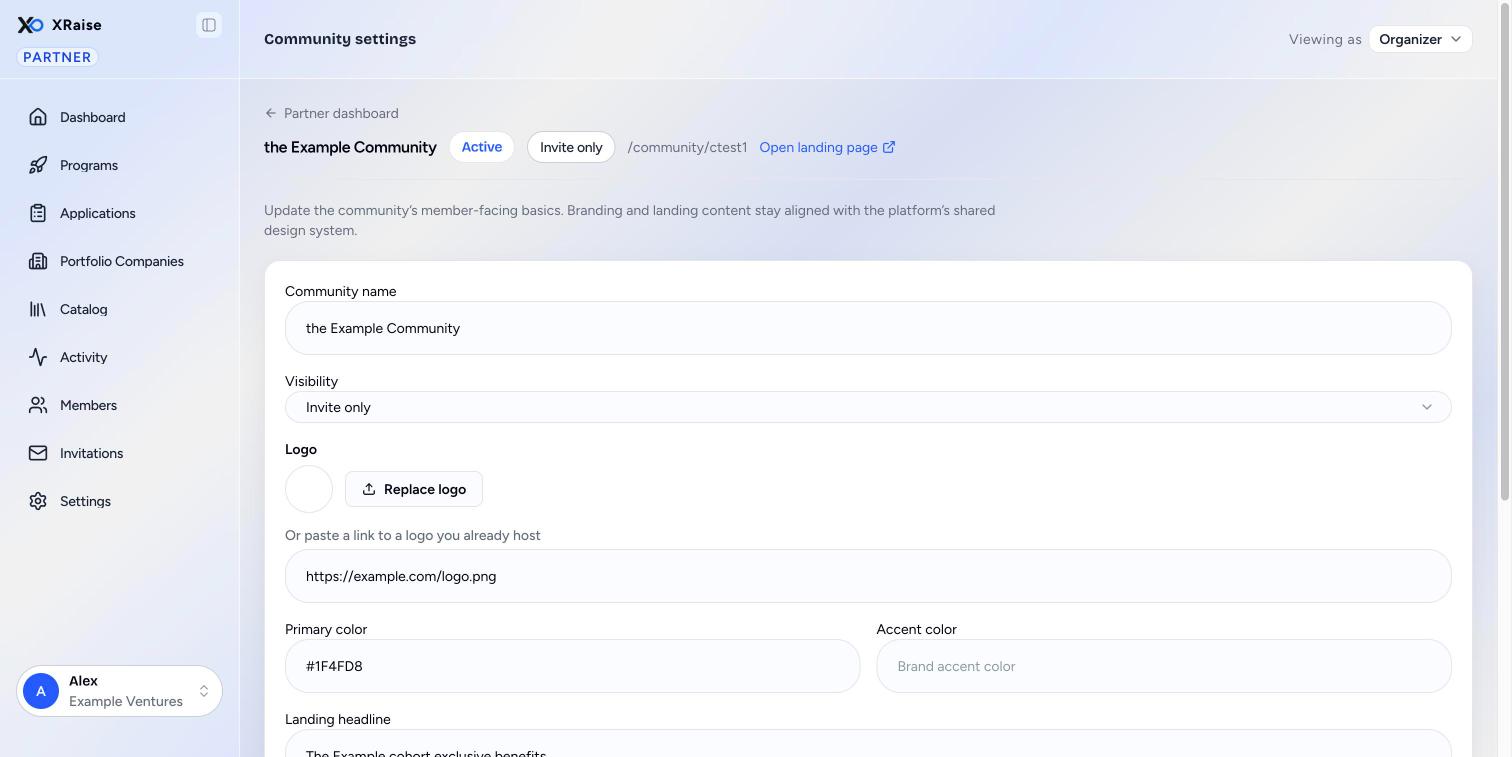
The community Settings screen holds the basics that your members see: the name, the visibility, the branding and the landing page text.
Who sees this screen and how to get to it
- Partner organizations that run a community.
- On the community overview (your Dashboard), click Community settings. The address is /partner/community/(community id)/settings. There is no menu item for it.
- Owners and Admins can save changes. A Member (read-only) sees "You have read-only access. A partner owner or admin can update settings." and the fields are greyed out.
This screen is not the partner Settings item in the left menu. That one holds your partner organization and your team.
The fields
| Field | Required | Limits | Where founders see it |
|---|---|---|---|
| Community name | Yes | 1 to 120 characters. | The community landing page, the community bar and the founder's community list. |
| Visibility | Yes | Public or Invite only. | Decides how founders join. See below. |
| Logo | No | Upload a JPEG, PNG or WebP image, up to 2 MB. Or paste a link to a logo you already host. | The landing page and the community branding. |
| Primary color | No | A # and six hex digits (0 to 9 and A to F, upper or lower case), for example #1A73E8. | The community branding. |
| Accent color | No | A # and six hex digits, for example #FF7A00. | The community branding. |
| Landing headline | No | Up to 160 characters. | The headline of the landing page. |
| Landing summary | No | Up to 1,000 characters. | The text under the headline. |
| Hero image URL | No | A full web link, for example https://example.com/hero.jpg. | The large image on the landing page. |
To clear an optional value, empty the field and save.
Under each color field, the hint "Format: # and six hex digits, for example #1A73E8." tells you the format. If you type a color in another format, for example a color name or a short code like #FFF, the hint changes to the red message "Enter the color as # and six hex digits, for example #1A73E8." and Save changes does not send the form. Correct the color, then save again.
Visibility
| Choice | How founders join | Invitations |
|---|---|---|
| Public | Anyone signed in to XRaise can join from the landing page. | Not needed. You cannot create new invitation links. |
| Invite only | Founders join with an invitation link. The landing page shows your branding but no way to join. | You create links on the Invitations screen. |
When you change a public community to invite only, existing members stay. Old invitation links that are still active start to control entry again.
Things you cannot change here
- The community address, /community/(slug). XRaise sets it.
- The status (Active, Draft or Archived). XRaise sets it. The landing page shows only when the community is Active.
How to change the branding
- On your Dashboard, click Community settings.
- Click Upload logo and pick an image. Or paste a link under "Or paste a link to a logo you already host". Wait until "Uploading logo…" ends.
- Type the Primary color and the Accent color as hex colors.
- Type the Landing headline and the Landing summary.
- Optional: paste a Hero image URL.
- Click Save changes.
- Click Open landing page in the community bar to check the result.
The button shows "Saving…" while it saves. When the save works, the message "Community updated" shows. If XRaise refuses a value, an error shows under the form.
Common questions
Why is Save changes greyed out? You have read-only access, or a logo is still uploading.
Why does my landing page not open? The landing page shows only when XRaise has set the community to Active.